See your stories on the Timeline and Timegraph
The Timeline spreads your stories along a line of years. Social events from the same period show in the rows below, so you can see side by side what the world was like back then. The Timegraph connects the same stories by how you felt, drawing the curve of your life.
When you finish reading, you can find and open any story on the Timeline and see the ups and downs of your life on the Timegraph.
What you need
- A book with a few stories in it — Make your first book, Write in the story window
1. The Timeline screen
Open it with Continue on the home screen, or with Create → Create Timeline. The story list is on the left, the toolbar is at the top right, and the year line runs through the middle.
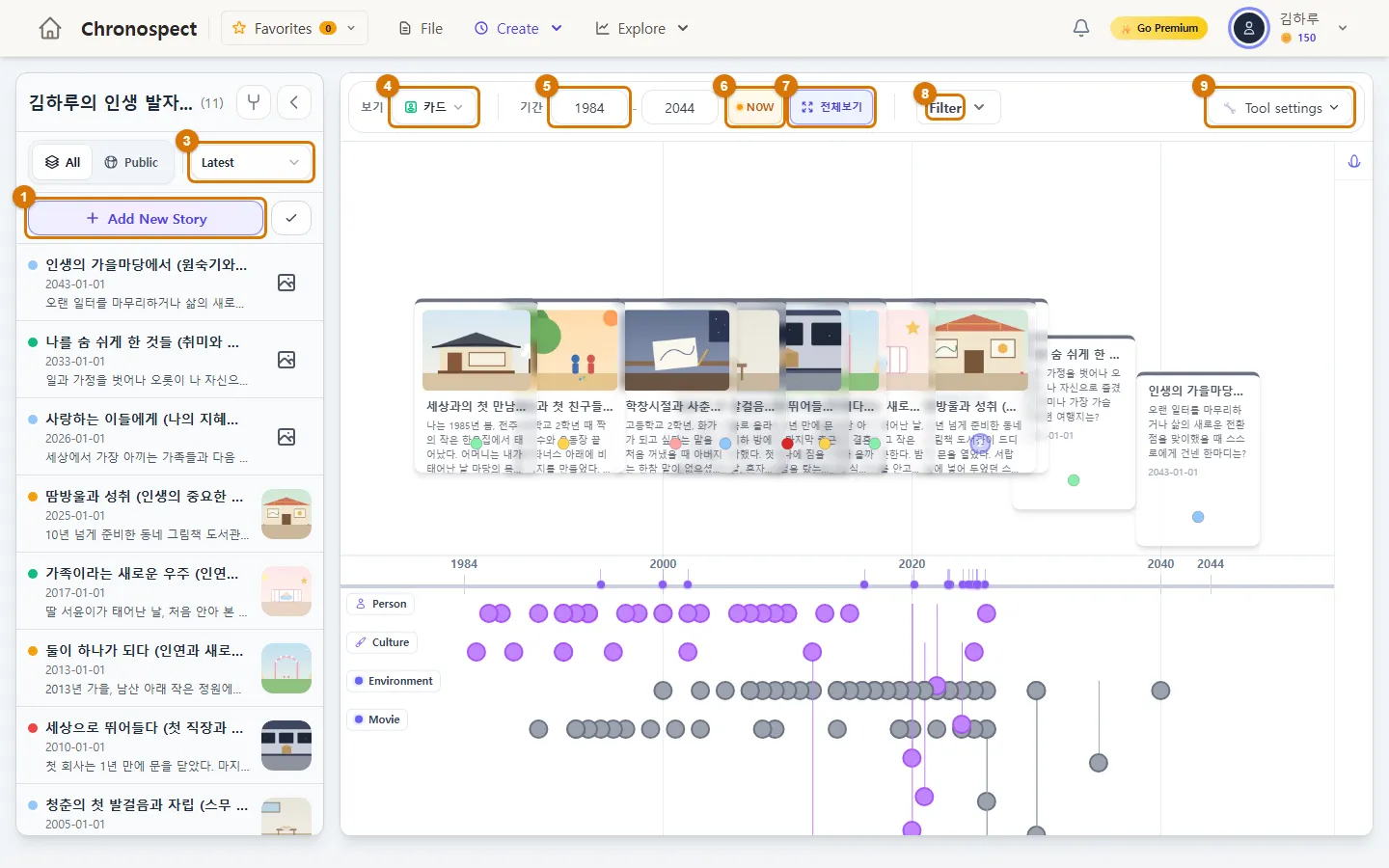
| No. | What it does |
|---|---|
| 1 Add New Story | Write a new story — Write in the story window |
| 2 ✓ (Selection Mode) | Choose several stories to move to another book or delete at once |
| 3 Sort | Latest · Oldest |
| 4 View | Dots (click a dot for a summary) · Cards (open cards to read) |
| 5 Period | Type the start and end years you want to see and press Enter |
| 6 NOW | Jump to this year |
| 7 Fit all | Fit every story on one screen |
| 8 Filter | Choose which kinds of social events show in the rows below |
| 9 Tool settings | Settings such as zoom and card size |
2. Using the story list
- Click a story in the list to open it. The Timeline also moves to that spot.
- The small colored dot on the left shows the story's emotion. The square on the right is its main photo (a picture icon if there is no photo).
- Hover over the photo area to see the Edit, Move/Copy and Delete buttons.
- Drag and drop a story to change its order in the list.
- Click All / Public to see only your public stories.
- Click < next to the title to fold the list and make the Timeline wider.
3. Moving around the Timeline
| What you want | How |
|---|---|
| Zoom in or out | Roll the mouse wheel (it zooms around where the mouse is) |
| Move sideways | Click an empty spot and drag. Shift + wheel also works |
| Open a story | Click its card or dot |
| Only a certain period | Type the years in Period and press Enter |
| Back to the start | Fit all |
TipClick Hide at the bottom right of a card to remove it from the Timeline. Bring it back with the "Hidden Events" button that appears on the toolbar.
4. Social events and categories in the rows below
Cards above the line are your stories. The rows below the line are social events from that year. Each row has a category such as culture, economy, people or film.
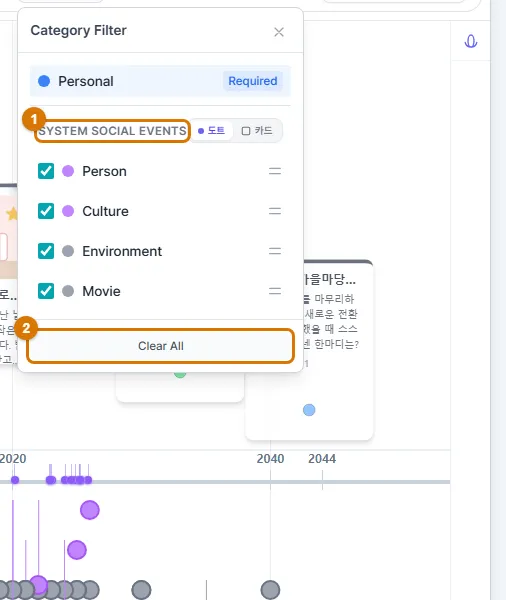
- In the Filter window, check only the categories you want to see (use Clear All to turn them all off at once). Drag the = on the right to reorder them, and the rows change order too. Dots or Cards decides whether social events show as dots or cards.
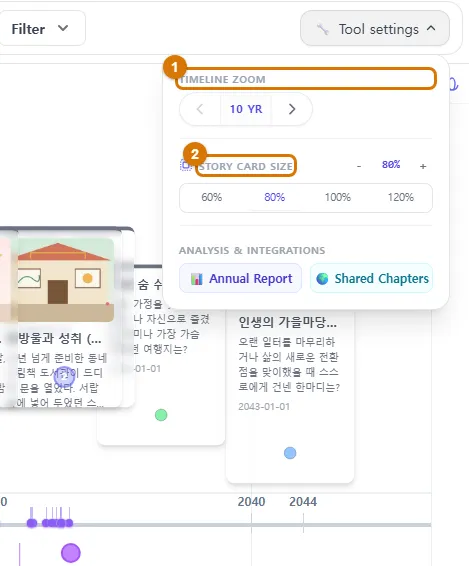
- In Tool settings, change the zoom level (for example, by decade) and the card size (60–120%). Under Analysis & integrations, you can also sum up a year with the Annual Report. Paid plans also show layout mode and grouping options.
5. See your life curve on the Timegraph
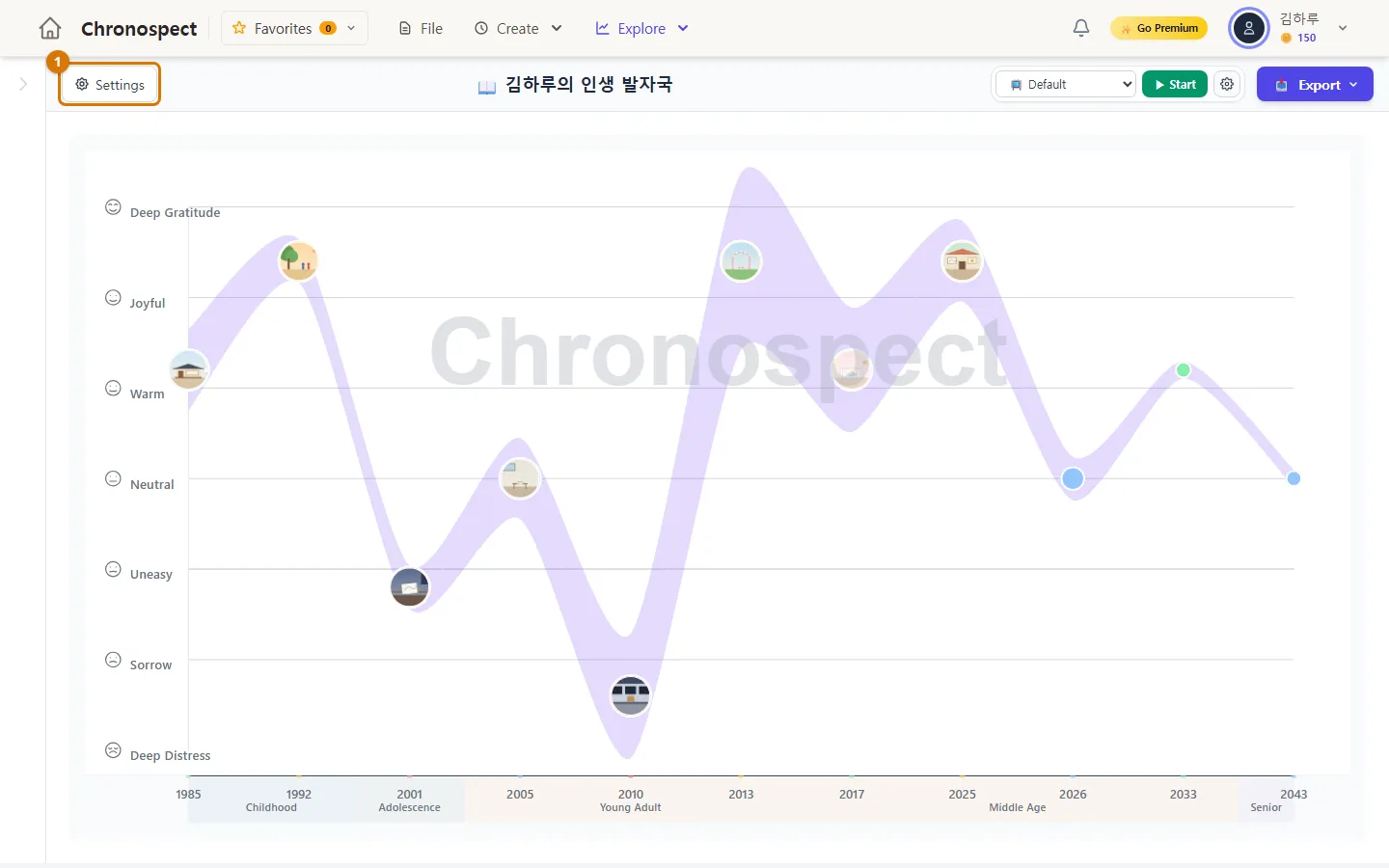
Click Explore → Life Graph (on a phone, Timegraph in the bottom menu). You need to pick a book first.
| How to read it | Meaning |
|---|---|
| Up and down (height) | The emotion of the story — from the bottom: Deep Distress · Sorrow · Uneasy · Neutral · Warm · Joyful · Deep Gratitude |
| Left to right | The order of your stories (by time). The spacing is the same no matter the dates |
| Dot size | The bigger the importance (stars) you gave in the story window, the bigger the dot |
| Band at the bottom | The year of the story and your age |
- Hover over a dot to see a summary of the story. Click it to keep the summary open.
- In Settings, change the graph shape, era colors and how age is counted (such as international age).
TipThe curve comes from the emotion field in the story window. The more care you take choosing emotions, the more your life curve comes alive. On the free plan, the graph has a watermark.
6. On your phone
On a phone, the Timeline runs from top to bottom. Open the story list with the list button at the top right, and tap "Show historical background" to see social events. The Timegraph on a phone shows a list by year — switch to detailed timeline mode to see the curve. Phones are mainly for viewing, so change graph settings or make videos on a computer.



Check
- You can click a story on the Timeline to open it.
- On the Timegraph, your stories are connected at heights that match their emotions.
If you get stuck
- My stories do not show on the Timeline
- Click Fit all. They may be outside the period, or you may have clicked Hide.
- Clicking Timegraph takes me home
- You need to pick a book first. Go into a book with Continue on the home screen, then open it.
- The curve is flat
- Check that each story has an emotion. Stories without one are placed at the same height.
Next chapter → Read your book with Story View and Read book
This chapter matches the screens as of 2026-10-09. Button names update automatically with the app.