Read your book with Story View and Read book
Once you have written a few stories, try reading them as a book. On a computer, it looks like a book you page through from the cover. On a phone, it shows as cards you scroll down.
When you are done, you can see your stories laid out on book pages together with their photos.
What you need
- A few stories with photos and text — Write in the story window
1. Where to open it
- Computer: Explore at the top → Story View (shortcut Ctrl + B)
- Phone: Read book in the bottom menu
TipYou need to pick a book first. Go into a book with Continue on the home screen, then open it.
2. Computer: turn pages like a book
It starts with the cover, followed by the title page and the contents. Each story fills a two-page spread with its date, title, photos and text. Chapters follow your book's contents. If there are no contents, a memoir is split by era (by decade), and other books list stories by title with no chapters. Click a page number in the contents to jump to that story.
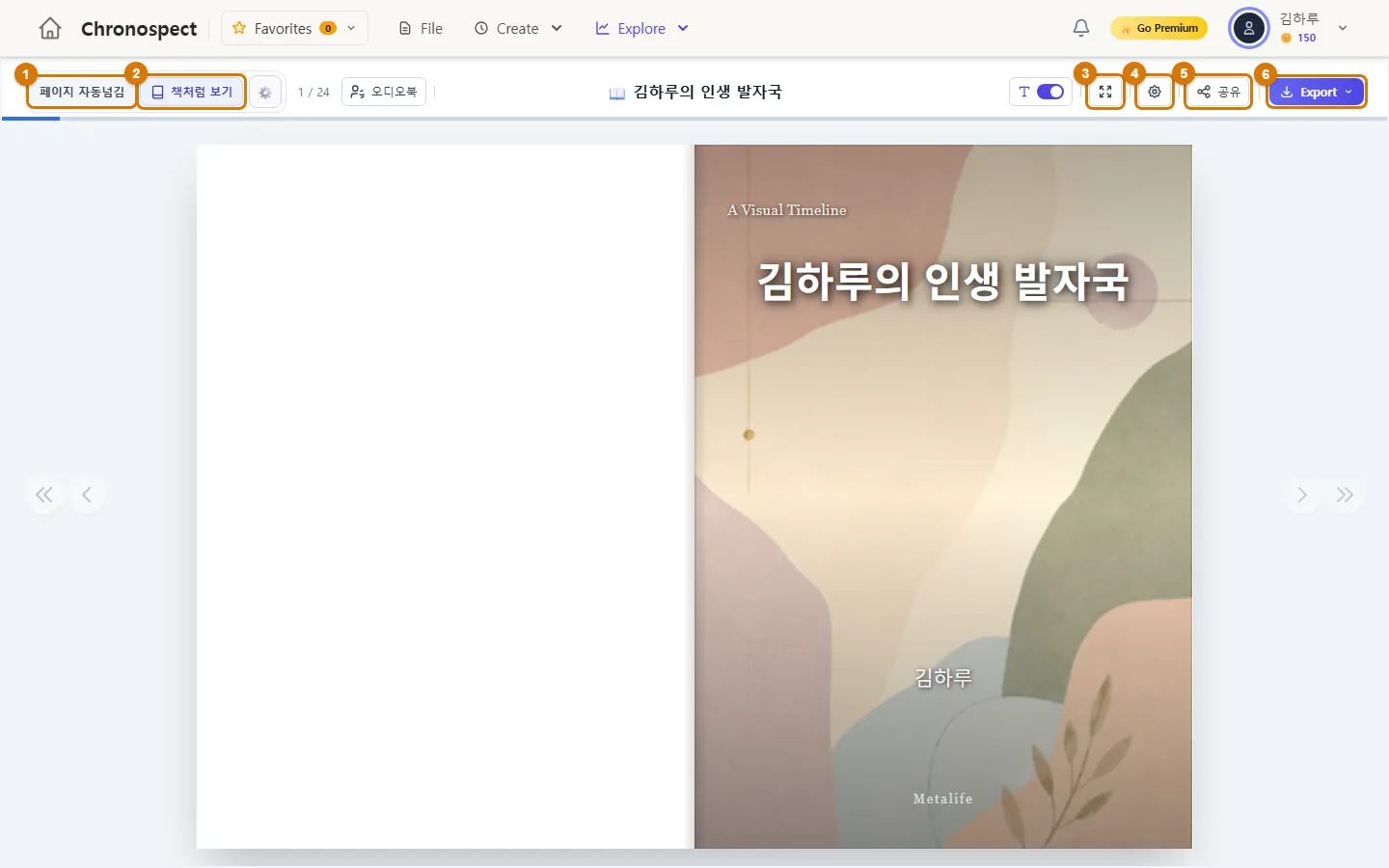
| No. | What it does |
|---|---|
| 1 Auto page turn | Turns pages by itself at the interval you set (1–15 seconds). Change the interval and sound with the ⚙ next to it |
| 2 Book view | Each click switches between book view (two-page spread) and one page at a time |
| 3 Full screen | See it as large as your screen |
| 4 ⚙ Settings | Font size, cover design and choosing what goes in the book |
| 5 Share | Make a view-only link — Share your book with a link |
| 6 Export | Download it as a PDF — Download a print-ready PDF |
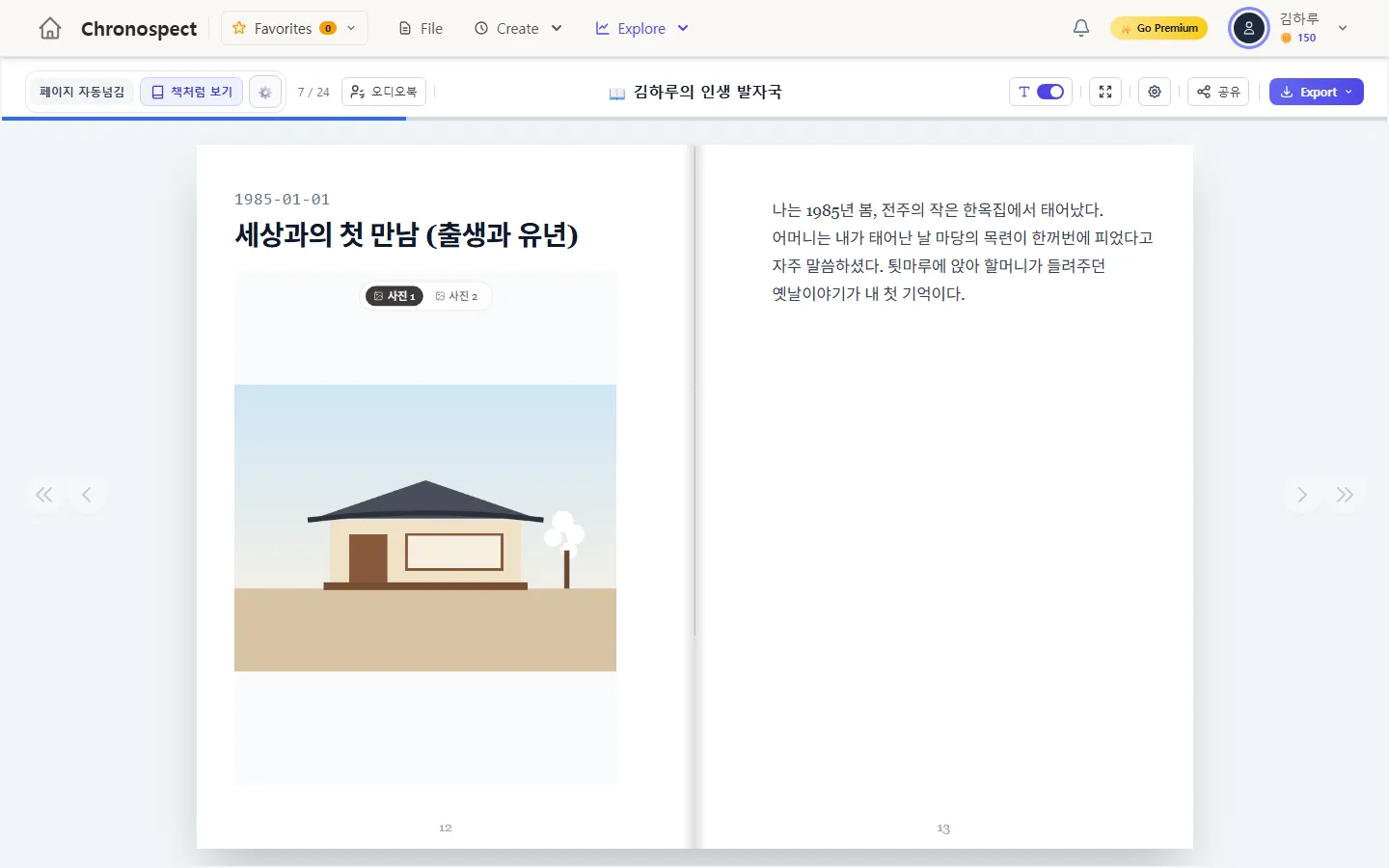
| Turning pages | How |
|---|---|
| Next or previous page | The ‹ › buttons on either side, or the → ← keys |
| First or last page | The ≪ ≫ buttons on either side, or Home · End |
| Auto page turn on or off | The space bar |
3. Reading settings
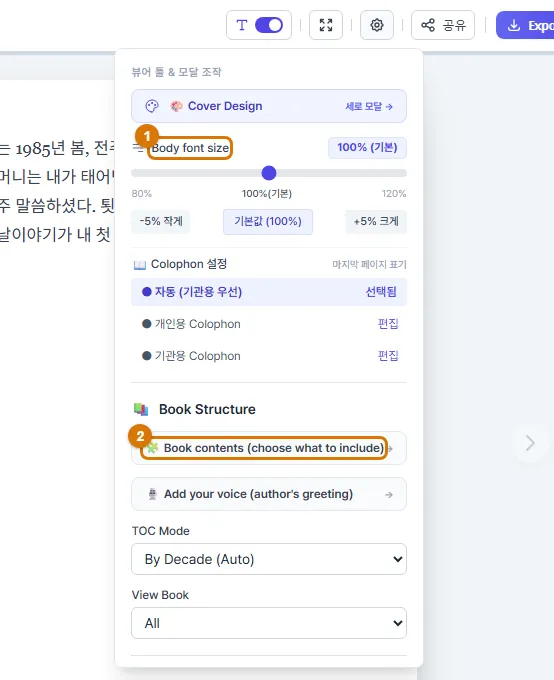
- Body font size: change it in 5% steps between 80% and 120%. Make it bigger when showing the book to older family members.
- Book contents (choose what to include): choose whether to include parts like the life graph, the people in your story and the place map.
- Cover Design: change the cover picture and font. You can also hide the cover text with the T switch at the top.
4. Phone: Read book
On a phone, story cards run from top to bottom. When you reach the end, a card says you have read every story.
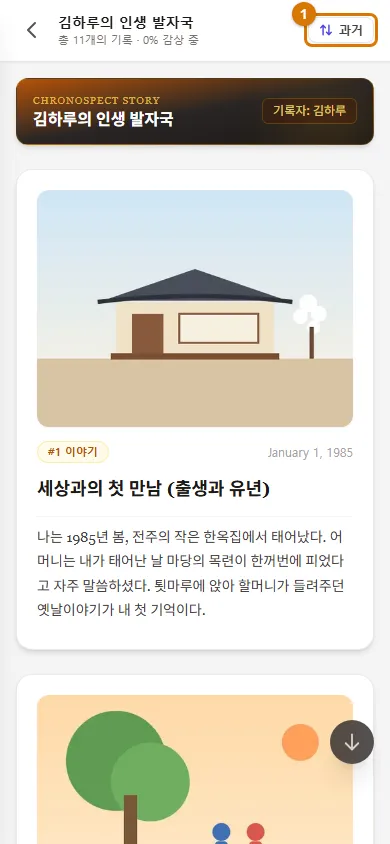
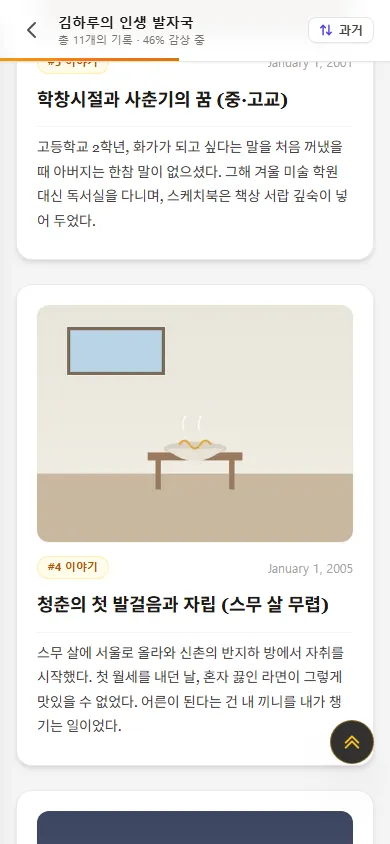
- Use the button at the top right (newest/oldest) to read from the oldest or the newest story.
- The bar at the very top shows how far you have read. The arrows at the bottom right take you straight to the top or bottom.
- Read book on a phone is for reading only. Share and download PDFs on a computer.
Check
- You can page through from the cover to your stories.
- In Read book on a phone, photos and text appear as cards.
If you get stuck
- I opened Story View and it says "Please select a book"
- Go into a book with Continue on the home screen, then open it again.
- The stories are in a strange order
- Check the dates in the story window. Story View puts stories in date order.
Next chapter → Exhibit your stories in the Timeline Gallery
This chapter matches the screens as of 2026-10-12. Button names update automatically with the app.