Exhibit your stories in the Timeline Gallery
The Timeline Gallery hangs your stories in frames on a museum wall, in time order. Stories from the same period share one frame. Turn on the guided tour and it lights up each piece one by one and reads its story to you.
When you are done, you can walk through your life like an exhibition, together with your family.
What you need
- A few stories with photos — Write in the story window
1. Open the gallery
Click Explore → Timeline Gallery. You need to pick a book first. When it first opens, every story is fitted on one screen.
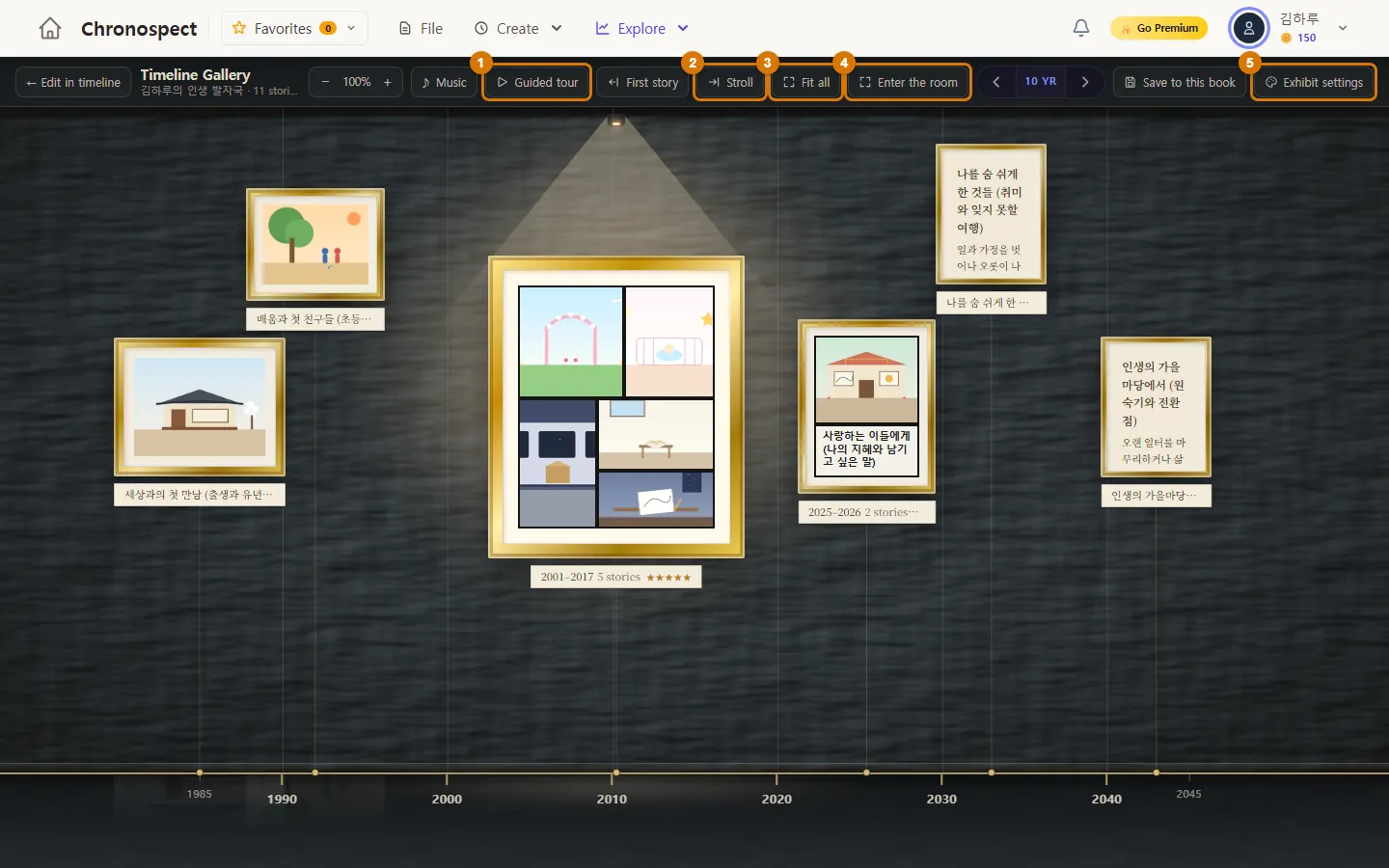
| No. | What it does |
|---|---|
| 1 Guided tour | Lights up each piece one by one and reads its story. Pause, skip, set the speed and subtitles at the top |
| 2 Stroll | Slowly glides along the wall so you can look around. You can change the speed and direction |
| 3 Fit all | Fits the whole period on one screen |
| 4 Enter the room | Hides the menus and shows only the exhibit, large (press Esc to leave) |
| 5 Exhibit settings | Change the walls, floor, frames, lighting and era markers |
2. Looking at the pieces
- Click a frame to open that story.
- Click a grouped frame such as "5 stories from 2001–2017" to open a small exhibit room. Click a card there to open that story.
- Frame size depends on the story's importance (stars). You can change this under Exhibit settings → Layout.
- You can drag a frame with the mouse to move it (book owner only, not on phones).
- Use − 100% + at the top to change the size of the pieces, and the 10 YR arrows to change how many years you see at once.
3. Decorate the exhibit
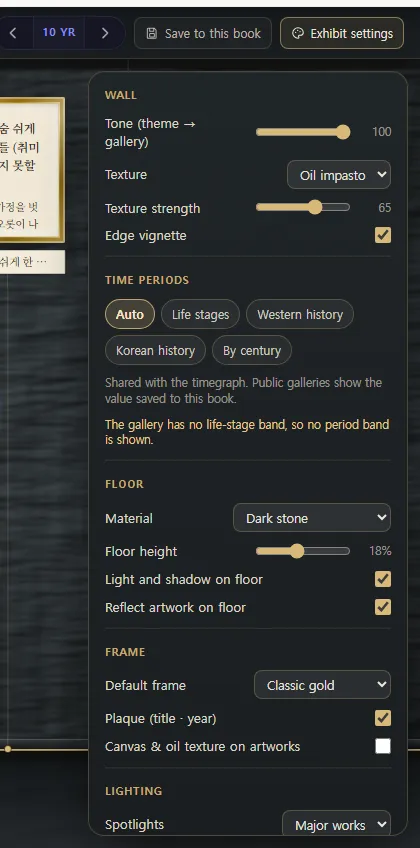
- You can choose the wall tone and texture, the floor material (such as dark stone), the default frame (such as classic gold) and spotlights.
- Era markers: choose Auto, Life stages, Western history, Korean history or By century, and an era band appears on the floor.
- When you like how it looks, click Save to this book at the top. People you share the book with will see the gallery this way too.
4. On your phone
On a phone, you can only look around and open pieces. Turn your phone sideways or use a tablet or computer to see the pieces larger. Buttons show only icons, so press and hold one to see its name.
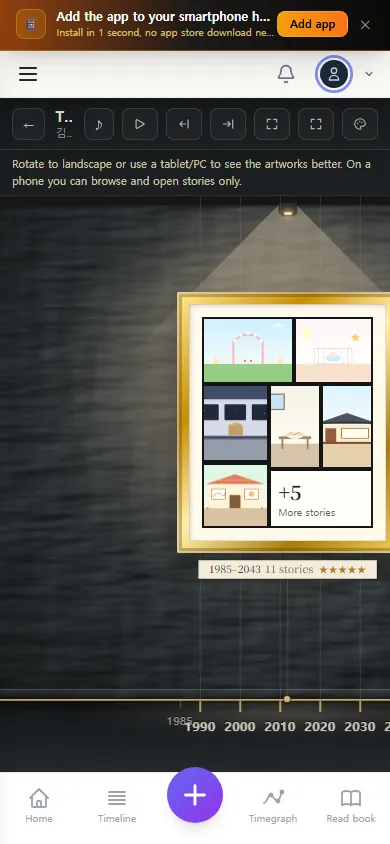
Check
- Frames with your stories hang on the wall in time order.
- You can view the pieces one by one with the guided tour.
If you get stuck
- The frames are too small
- Use + at the top to make the pieces bigger, or give your important stories more stars in the story window.
- The guided tour button is grayed out
- You need at least one story with a photo or text.
Next chapter → Make a Photo Mosaic
This chapter matches the screens as of 2026-10-09. Button names update automatically with the app.