Add a story: the story window in detail
Everything in MyLifeBook starts with a single "story". Save one memory in the story window with a title, date, photos and text. It goes onto your timeline, and later becomes part of a book, a story view or a portfolio.
When you are done, a new story card appears on your timeline.
What you need
- You are logged in — Sign up and log in
- One book — Make your first book (template books already include sample stories)
- Photos or videos to add (optional)
1. Open the story window
- Computer: on your book's timeline screen, click Add New Story above the list on the left.
- Phone: tap the Add button in the middle of the bottom menu, then choose Create Event from the list.
- To edit a story you already wrote, hover over it in the list and click the pencil button. The window title changes to 📝 Edit Story.
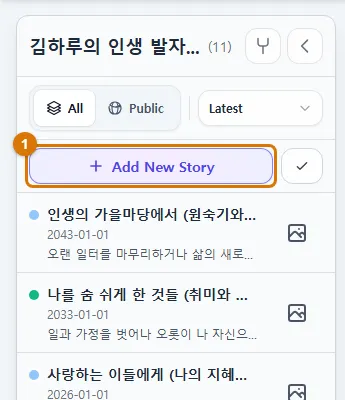

TipYou can also open the story window from the Timegraph screen.
2. The story window at a glance
On a computer, a single window opens in the middle. The numbers match the table below. Fields marked with an asterisk (*) must be filled in before you can save.
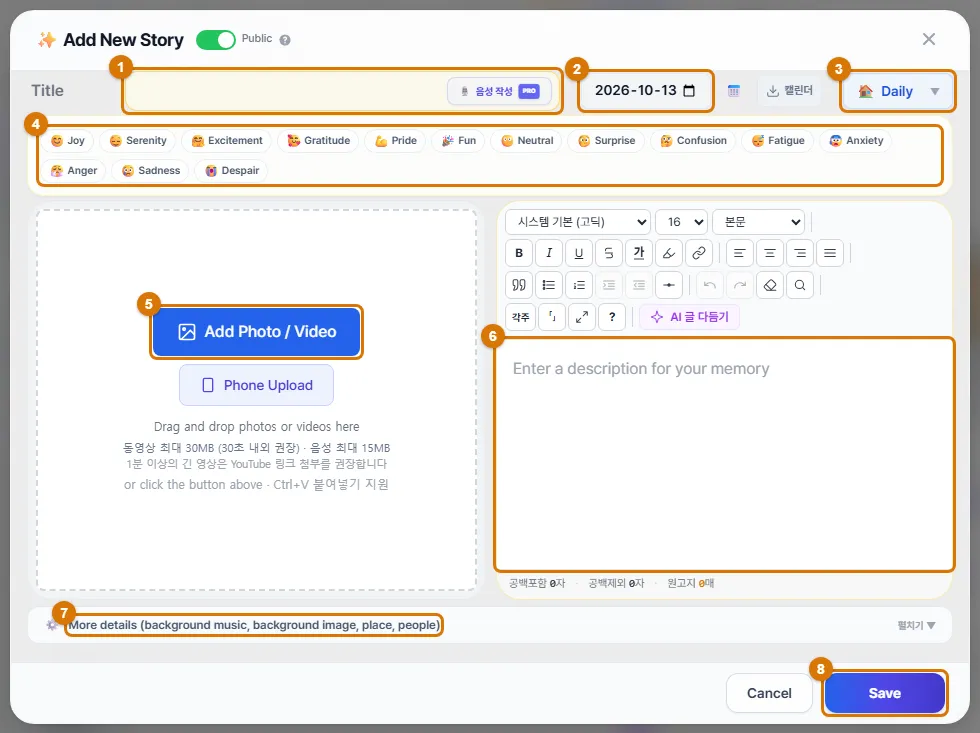
| No. | Field | What it does |
|---|---|---|
| ① | Title * | The name of the story. It appears as is in the contents and the book |
| ② | Date * | The day it happened. It sets the story's place on the timeline |
| ③ | Type * | One of 10 kinds of story. The button at the top right (default: Daily) |
| ④ | Emotion * | The line under the title. You can pick several feelings you had at the time |
| ⑤ | Add Photo / Video | Up to 4 photos, videos or audio files |
| ⑥ | Story * | Write what happened. You can use formatting and AI writing help |
| ⑦ | More details (background music, background image, place, people) | Extra information like place, people and background music |
| ⑧ | Save | Save when you are done |
3. The five fields you must fill in
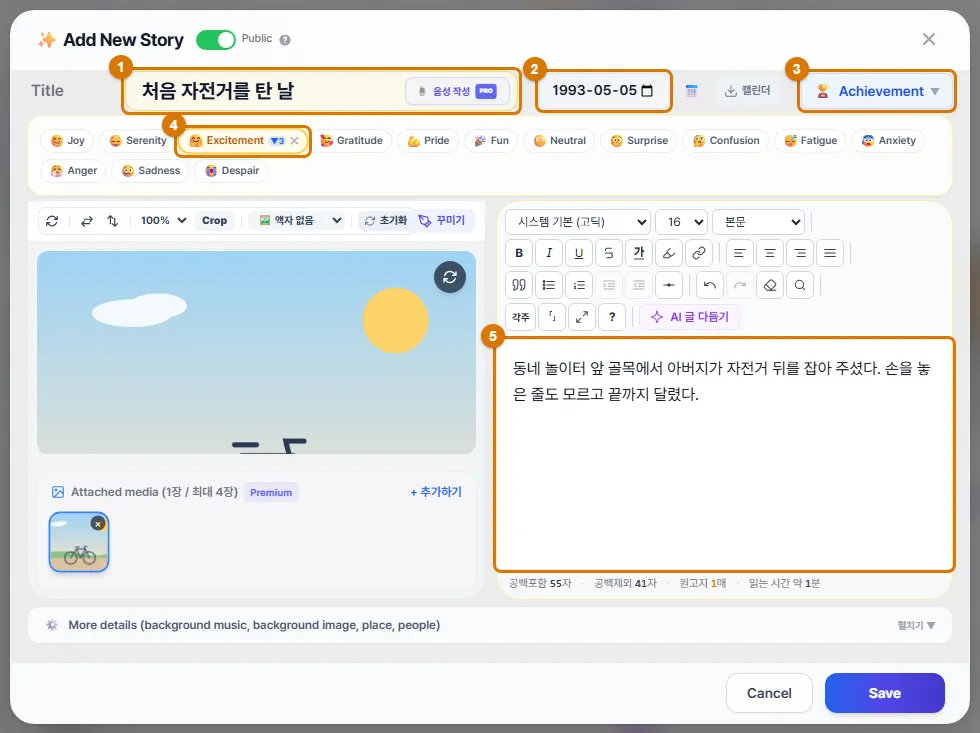
- Title: keep it short and vivid. For example: "The day I first rode a bike".
- Date: today's date is filled in at first. Change it to the day it happened. If you do not know the exact day, any day in that year is fine. If it lasted several days, use the calendar button next to the date to turn on Period, then choose the Start Date and End Date.
- Type: click the button at the top right to see Daily, Travel, Family, Career, Relationship, Health, Hobby, Achievement, Milestone and Other. Daily is selected at first.
- Emotion: in the line under the title, pick one or more of 14 feelings such as Joy, Excitement, Pride and Sadness, and set how strong each one is from 1 to 5. The feelings you pick set the highs and lows of your Timegraph.
- Story: see section 5 below.
NoteIf a field is missing, an "Input Error" window appears when you save. It tells you one at a time, in this order: title → date → type → story → emotion.
4. Add photos and videos
- Click Add Photo / Video and choose a file. You can also drag a file onto the window, or paste a copied photo with Ctrl+V.
- If the photo is on your phone, follow "Send photos straight from your phone" below.
- If you have 2 or more photos, use Create a smart 4-panel collage to combine them into one image.
Send photos straight from your phone — most photos live on your phone. You can send them directly to the story window without moving them to your computer first.
- In the story window on your computer, click Phone Upload. A QR code window appears.
- Scan the QR code with your phone camera and open the link that appears. You do not need to log in on your phone.
- On your phone, choose photos with "Select photos" or take one right away with "Take a photo". You can pick up to 4.
- Tap "Send photos to PC". When you see "Transfer complete!", you can close the window on your phone.
- When the computer window shows that the photos were received, click "Done and close". The photos are added to your story.
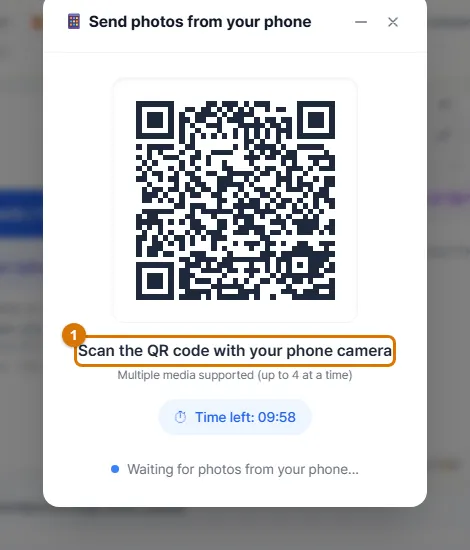
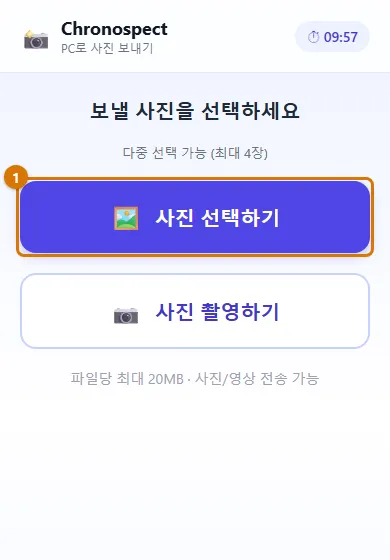
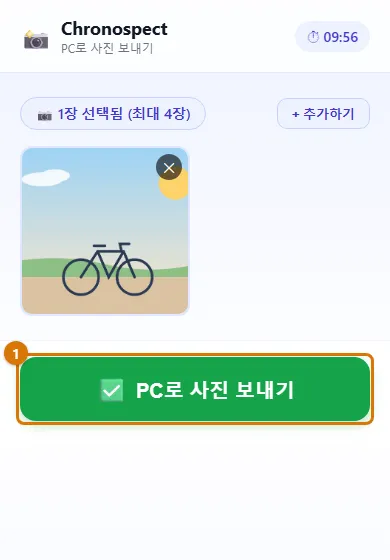

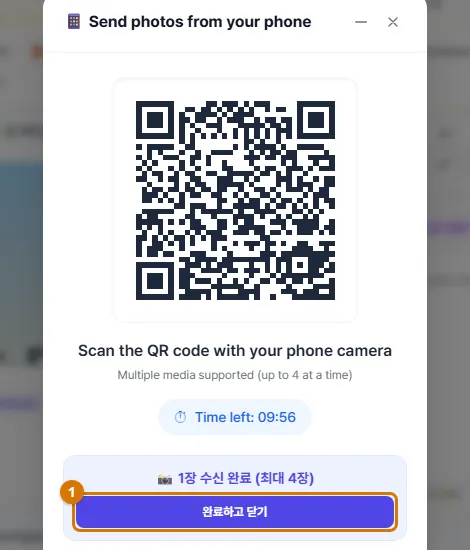
- A QR code works for 10 minutes. If it shows "Expired", click Generate again.
- If you want to keep writing while you wait for the photos, fold the QR window with the ㅡ button at its top right. A small bar at the bottom right shows the progress.
- From your phone, you can send files up to 20MB each.
| Kind | Formats | Max per file |
|---|---|---|
| Photo | JPEG · PNG · GIF · WebP | 10MB |
| Video | MP4 · WebM · MOV · AVI | 30MB |
| Audio | MP3 · M4A · WAV · OGG | 15MB |
TipYou can add up to 4 files per story. When you choose files on a computer, the free plan uploads one at a time (if you pick several, only the first is added). Sending from your phone allows up to 4 photos at once, even on the free plan.
5. Write and polish your story
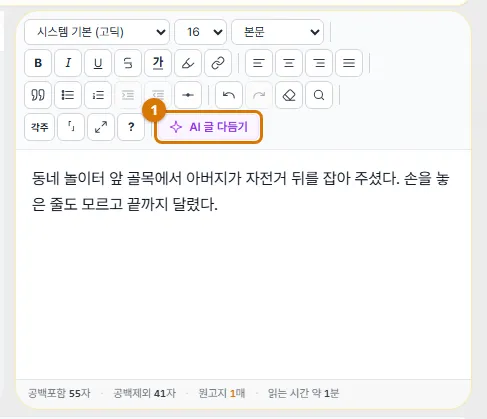
The story field is an editor with writing tools. The toolbar at the top has font and size, bold and italic, text color, alignment, quotes, lists and dividers, plus find and replace, footnotes and focus mode. The bottom shows the character count and manuscript page count.
- Link another story: click the link button (Ctrl+K) and type part of a story title instead of a web address. Your matching stories appear. Pick one and it becomes a link with a dotted underline.
- AI writing polish (Basic and up): click the AI polish button on the toolbar to compare your original and the polished text side by side. You can apply only the parts you like. On the free plan, an information window appears instead.
- Polish just a part: select some text and a small polish window appears. You can fix only spelling or try rewriting it (uses AI credits).
TipIf the AI adds things you did not do, or numbers that are not yours, do not apply it. Your story sounds best in your own words.
6. More details
Click More details (background music, background image, place, people) at the bottom of the window to open it. You can save even if you leave all of it empty.
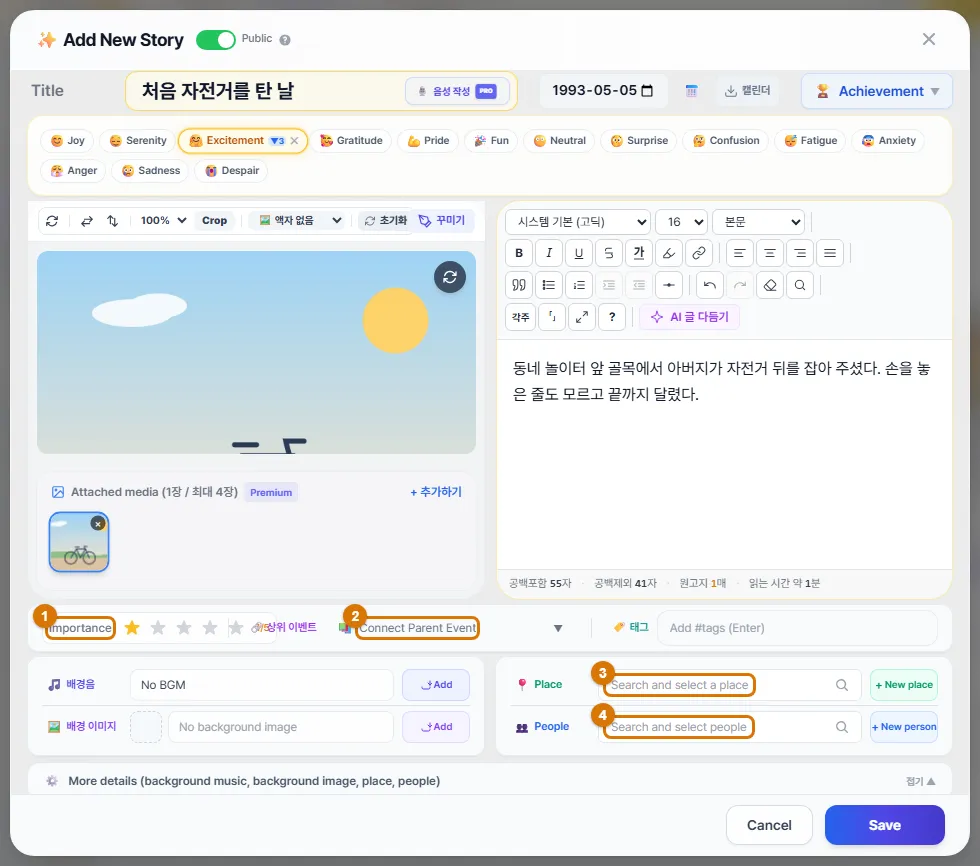
| Field | What it is for |
|---|---|
| Importance | 1 to 5 stars. Mark your important stories |
| Connect Parent Event | Group smaller stories under a bigger one (for example, each day under "Trip to Jeju") |
| Tags | Add words like #family. Press Enter or type a comma to add one |
| Background music · Background image | The music and backdrop shown when this story opens in Story View |
| Place | Search for a place and choose it, or add a new one on the map |
| People | Choose the people who were with you, or add someone new (linked to Manage People) |
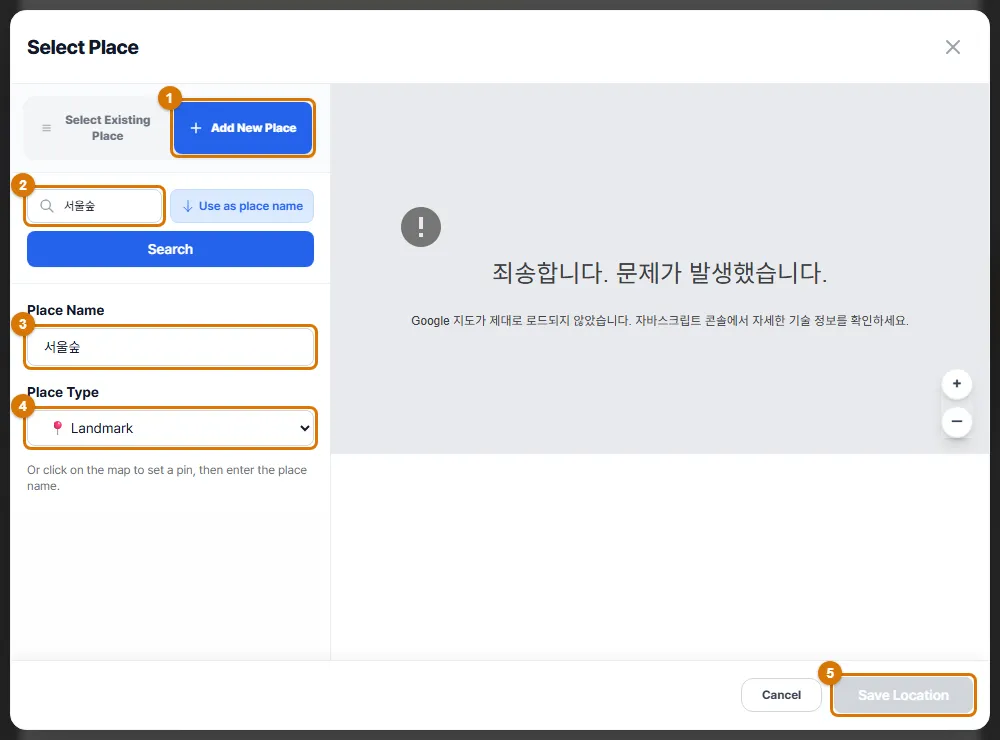
Add a new place — the first time you use a place, find it on the map and save it. After that, you just choose it from the list in your next stories.
- Click + New place on the right of the Place field. The Select Place window appears.
- Click Add New Place at the top.
- Type a place name or address in the search box and click the Search button (pressing Enter does not search). A pin appears on the map and the address shows below. You can also click the map to place the pin yourself.
- Type what you call it in Place Name (for example, Home or Seoul Forest). Click Use as place name to use your search words as the name.
- Choose a Place Type: Home · Restaurant · Landmark · School · Work · Other.
- Click Save Location. It only works when there is both a pin and a name. Once saved, the place is added to this story right away.
TipFor places you already saved, choose one under Select Existing Place and click Complete Selection. Each story can have one place. You can edit or delete saved places in Manage Places in the user menu.
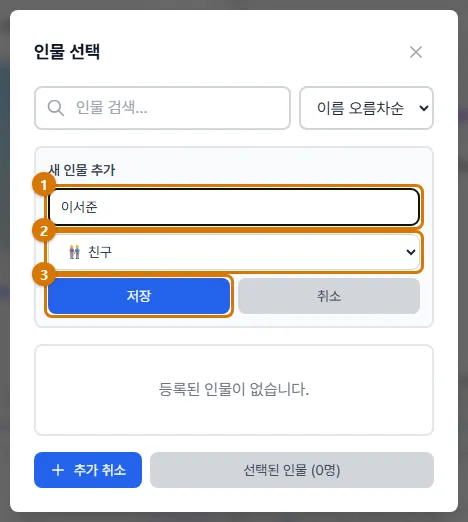
Add a new person — save the people who were with you, and you can later see stories gathered by person.
- Click + New person on the right of the People field. The Select People window appears.
- In the Add New Person area, type a name and choose the relationship: Family · Friend · Colleague · Other. (The input area is open at first. If it is closed, click Add New Person at the bottom.)
- Click Save. The person appears in the list.
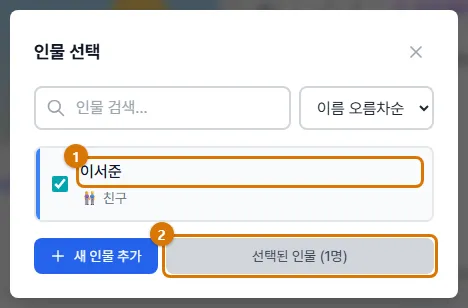
- Saving alone does not add them to the story. Click the person in the list to check them. You can choose several people together.
- Click "Selected People (n)" at the bottom. The window closes and they are added to the story.
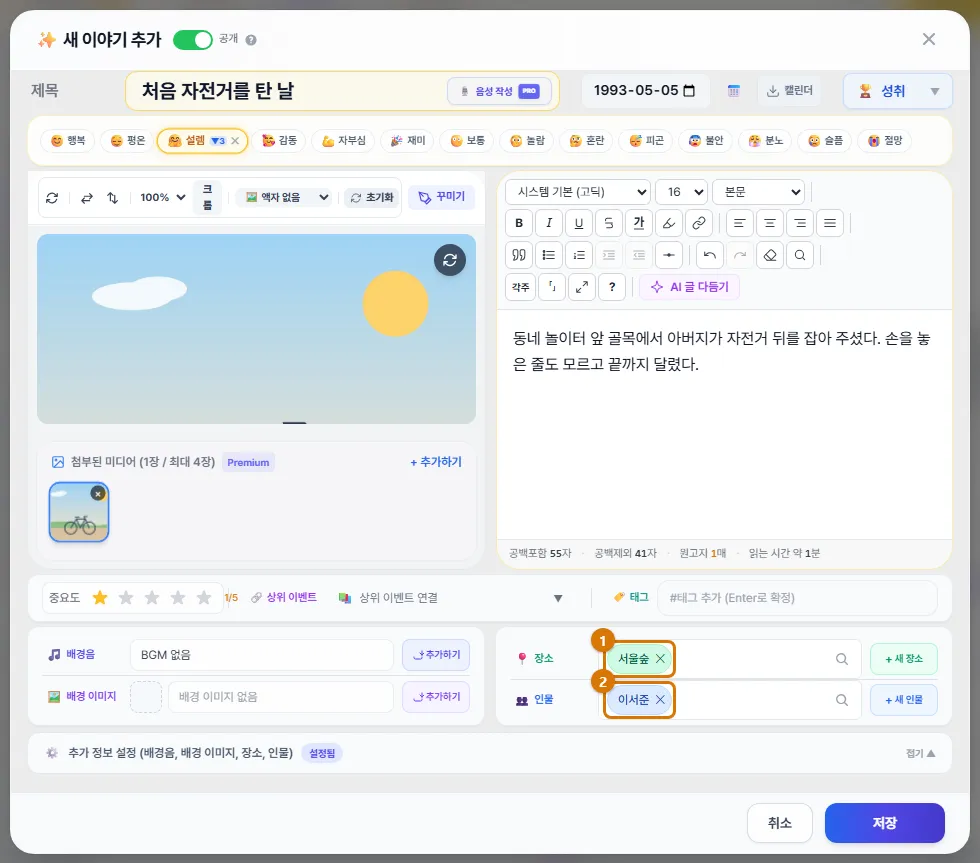
TipYou can edit or delete saved people in Manage People in the user menu.
7. Public or private, and saving
- Use the Public switch next to the title at the very top to decide whether others can see this story. New stories start as Public. Turn it off to make it Private — only you will see it, even when you share the book.
- Click Save. The story window closes and a confirmation window appears — click Confirm. The story appears in the list on the left and on the timeline.
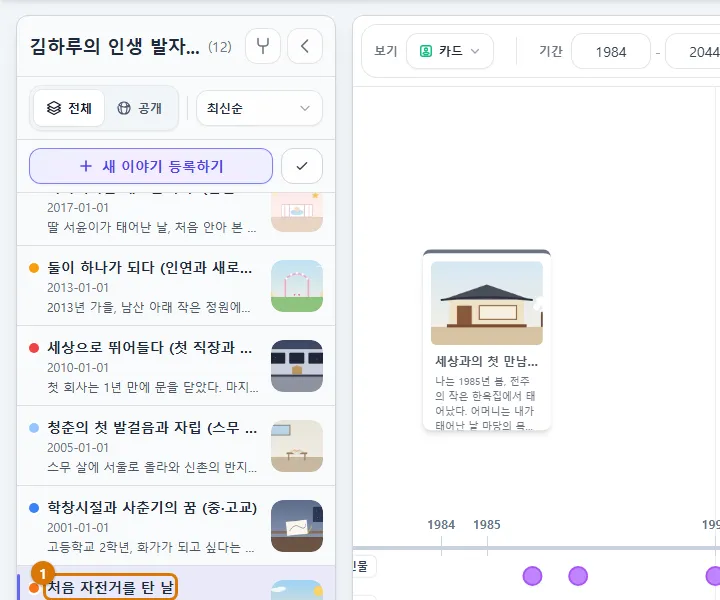
NoteThere is no draft saving. If you click Cancel or outside the window before you finish, it asks whether to close and lose what you wrote. For long stories, it is safer to write them in a notepad first.
8. On a phone, it takes two steps
On a phone (or any narrow screen), the story window fills the whole screen and is split into two steps.
- Core Info: title, date, type and emotion. You need a title before you can go Next.
- Content & Photos: text, photos and videos, and the public setting. Save with Save at the top right.
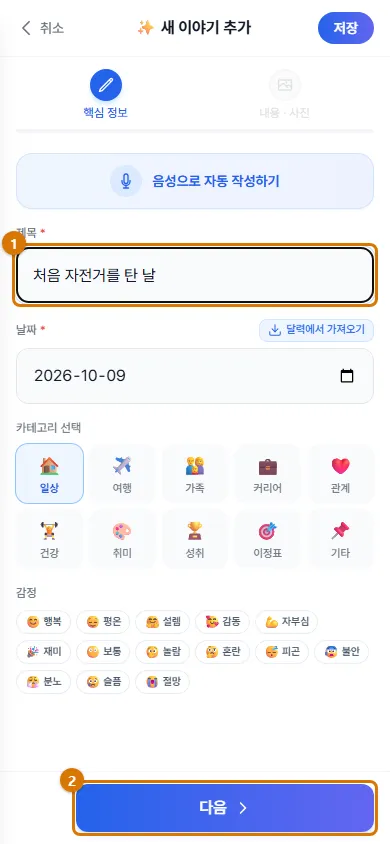
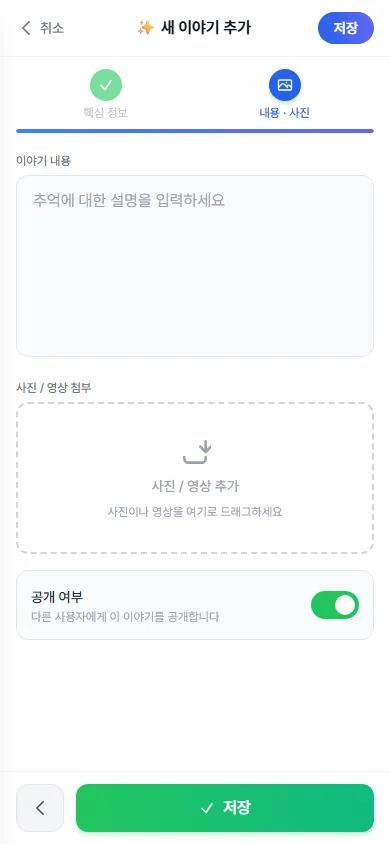
NoteThe phone screen does not have period, place, people, background music, tags, importance, Connect Parent Event, story links or AI writing polish. Open the story on a computer to add these. For formatted text, the phone only offers "Edit text only".
9. In habit-log books
In habit-log books like Reading Log or Movie & Drama Notes, a new story opens with a question form already in the story field, today's date and the type set for you. Answering just the first question is fine. Unanswered question lines are removed when you save.
Check
- The story window closed and a confirmation window appeared.
- A card with the title you just wrote appears in the timeline list and on the timeline.
If you get stuck
- I clicked save and an "Input Error" window appeared
- Fill in the field it names. The five required fields are title, date, type, story and emotion.
- It says I have reached the story limit
- On the free plan, each book can hold up to 20 stories. Make a new book or upgrade your plan to write more.
- I chose several photos but only one was uploaded
- The free plan uploads one at a time. Add the rest one by one (up to 4 per story).
- My phone has no place or people fields
- They are not on the phone screen. Open the story on a computer and add them under More details.
Next chapter → See your stories on the Timeline and Timegraph
This chapter matches the screens as of 2026-10-09. Button names update automatically with the app.