Share your book with a link
At first, only you can see your book (private). Make a link and send it, and the people who receive it can see your book without signing up. They cannot edit or download it.
When you are done, you can send a link to your book by KakaoTalk or text message, and show it with a QR image too.
What you need
- Your book open in Story View on a computer — Read your book with Story View and Read book
1. Send a link
Click Share at the top right of Story View to open the Share window. The card at the top shows what the recipient sees in KakaoTalk.
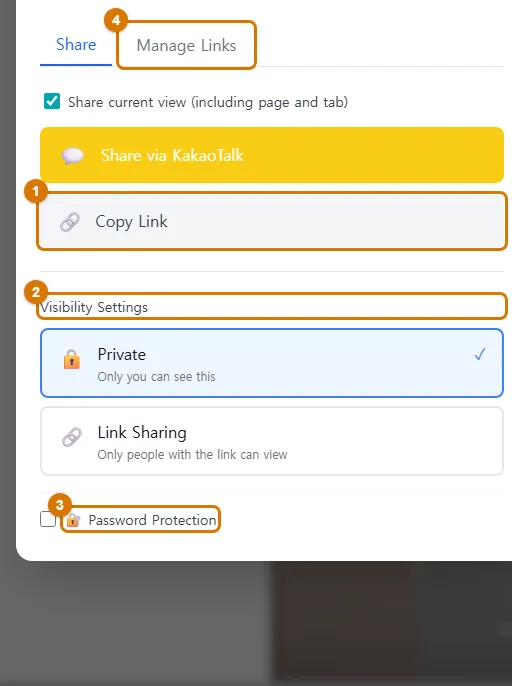
- Click Send via KakaoTalk (1) to choose KakaoTalk friends and send it right away. The message comes with an Open button that opens the book and a Make my own button so the recipient can start one too.
- To paste it somewhere else, click Copy link (2).
- If the book is private, a window asks you to confirm that anyone with the link can see it. Click Confirm and the visibility changes to Link Sharing.
- Paste the copied link into a text message, email or messenger and send it.
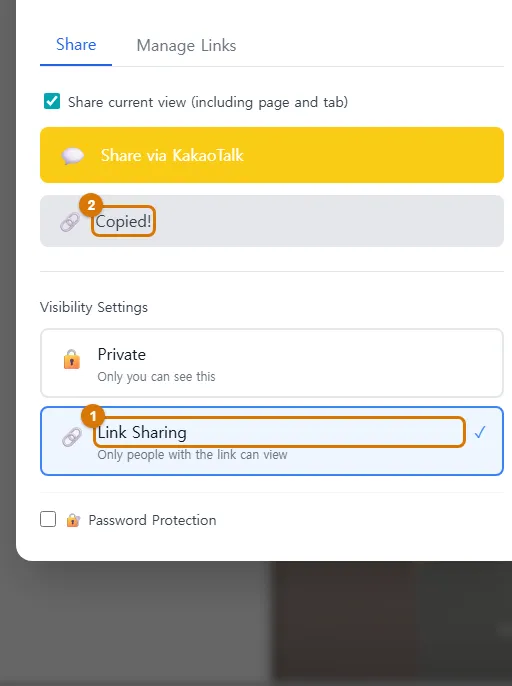
TipThe text in the box under the card goes along with the KakaoTalk message. You can edit it before sending. If "Share current view" is checked, the link opens at the page you are looking at now.
2. Show it with a QR code
Click QR code (3) in the other ways row to get an image with the book title and a QR code. Point a phone camera at the QR code and the book opens without logging in.
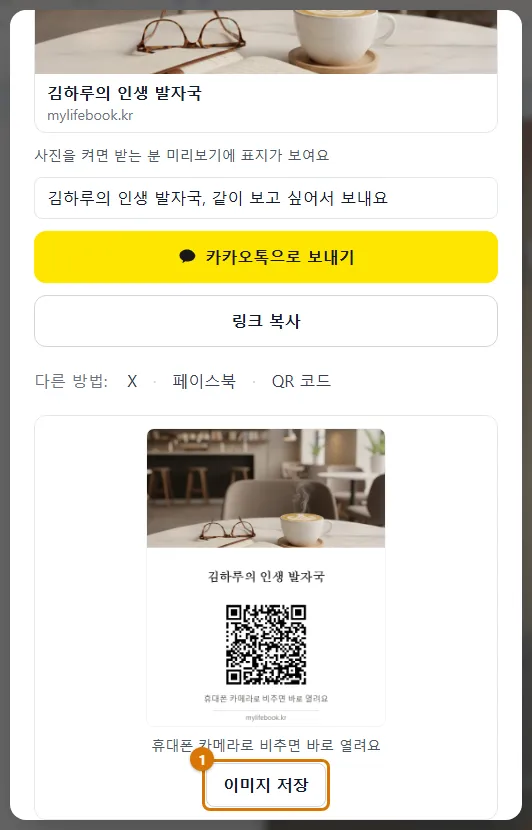
- Click Save image (1) to download the image. Print it and place it at a gathering or next to a photo frame.
- If you opened it on a phone, you can send the image straight to apps like KakaoTalk with Send.
- A QR image cannot be tapped inside a KakaoTalk chat. In chats, send the link with Send via KakaoTalk, and use the QR code on paper or another screen.
TipTurn on Show photo in link preview in Preview settings and the cover goes at the top of the QR image too. When it is off, a default picture is used.
NoteAnyone who scans the QR code can see the book. If you place it where many people can see it, add a password, or delete the link after you have shown it.
3. Visibility and passwords
| Visibility Settings | Who can see it |
|---|---|
| 🔒 Private | Only you. This is the starting setting |
| 🔗 Link Sharing | Only people who get the link. It does not appear in search |
Check Password Protection, set a password of at least 4 characters, then copy the link. People who receive it must enter the password to see the book. Tell them the password separately.
4. What the recipient sees
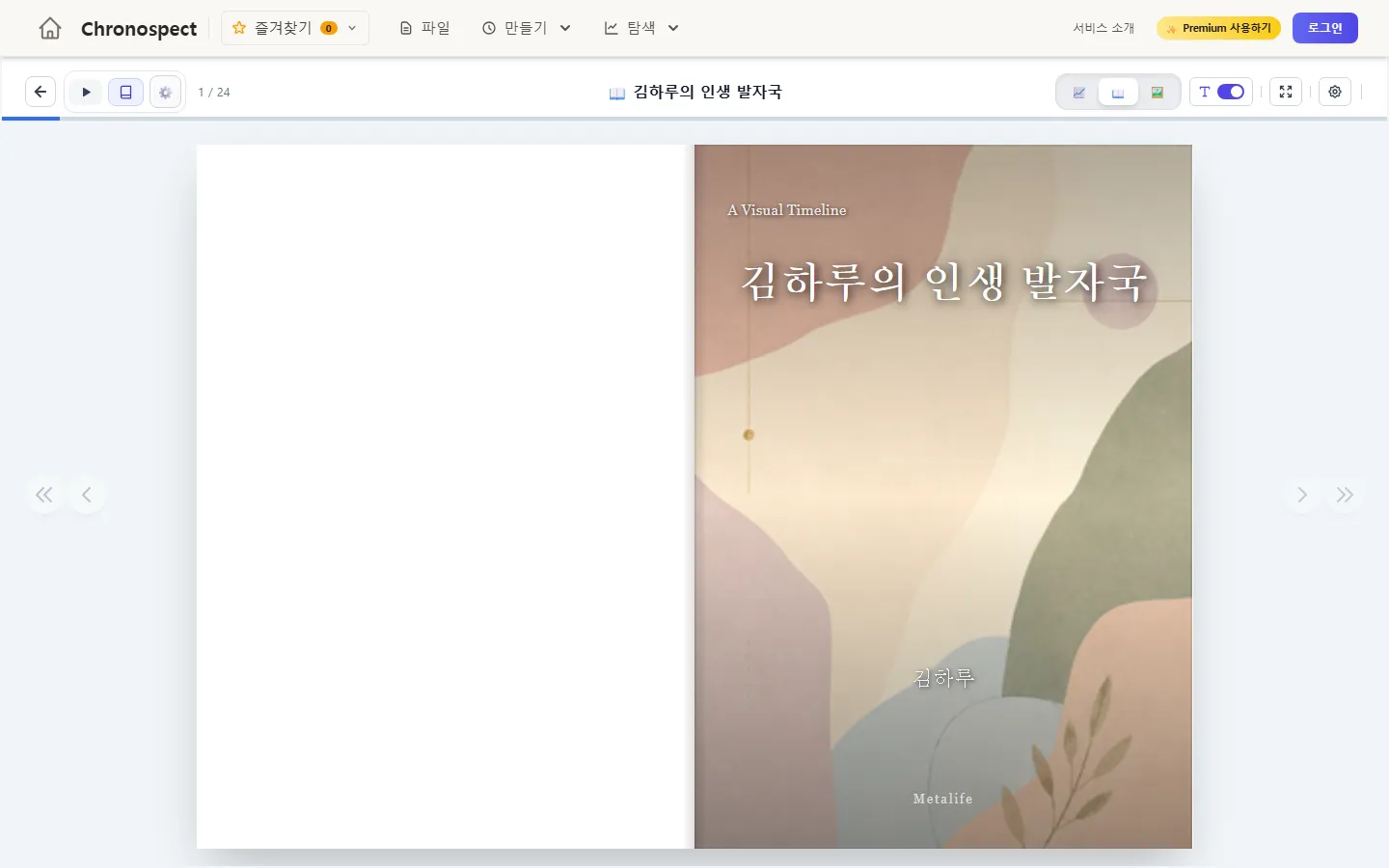
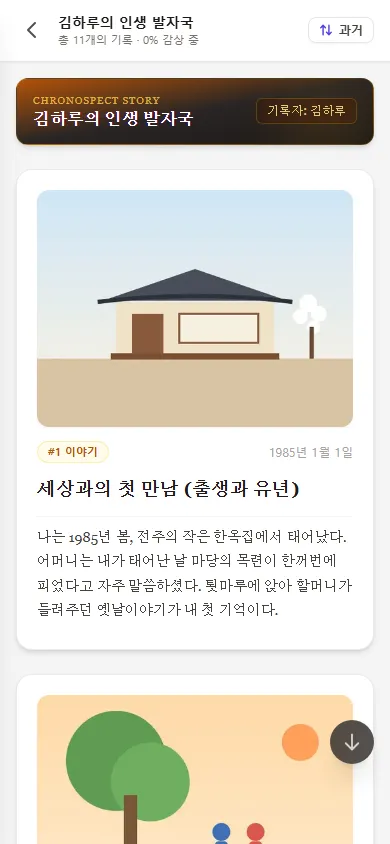
People who get the link can see the book right away without logging in. With the three buttons at the top right, they can switch between Life Graph, Story View and Gallery.
5. Turn off sharing
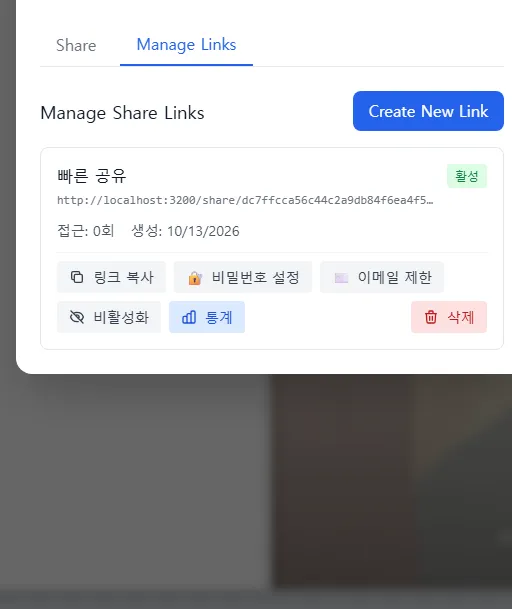
- In the Manage Links tab, you can see the links you made and how many times they were viewed.
- Click Deactivate to block a link for now. You can activate it again later.
- Click Delete and that link will never open again. QR images made from that link stop opening too.
- To make the whole book visible only to you again, choose Private in the Share tab.
NoteAnyone you send a link to can pass it on to others. If your book has sensitive stories, add a password, or delete the link after you have shown it.
Check
- When you open the link in a browser where you are not logged in (or on a family member's phone), the book appears.
- When you point a phone camera at the QR image, the book opens.
- A "Quick share" link appears in the Manage Links tab.
If you get stuck
- The recipient sees a message that the share link cannot be opened
- Check in the Manage Links tab whether you deleted or deactivated the link. Click Copy Link again and send the new link.
- Scanning the QR code does not open the book
- Check in the Manage Links tab that the link was not deactivated or deleted. Click QR code again to make a new image.
- I do not see the Share button
- It only shows on your own books. Open it from Story View on a computer.
- The share window shows "Public" selected
- Only administrators can choose Public. Click Private once to reset it, then click Copy Link again.
Next chapter → Using MyLifeBook on your phone
This chapter matches the screens as of 2026-10-23. Button names update automatically with the app.