Using MyLifeBook on your phone
You use MyLifeBook right in your phone's browser, with no app store install. Add an icon to your home screen and it opens in one tap, like an app. Taking photos and writing short notes is easier on a phone; polishing your book, PDFs and sharing are easier on a computer.
When you are done, you can open it from the icon on your phone's home screen and save stories right away.
What you need
- A smartphone (Chrome on Android, Safari on iPhone)
- You are logged in — Sign up and log in
1. Add the app to your home screen
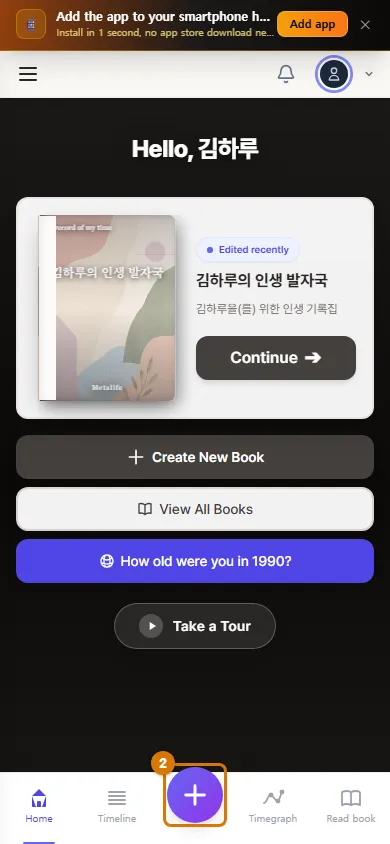
- Open mylifebook.kr on your phone. You will see an "Add the app to your smartphone home screen" bar at the very top.
- Tap Add app (1).
- Android: when the install window appears, tap Install and you are done.
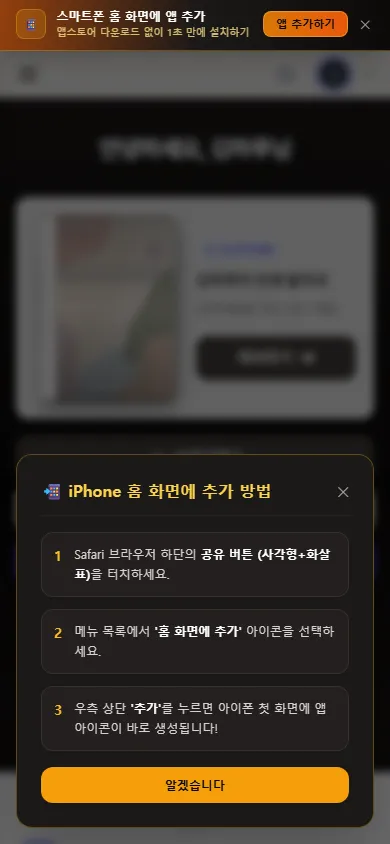
- iPhone: an instruction window appears. Tap the Share button at the bottom of Safari (a square with an arrow) → Add to Home Screen → Add at the top right.
TipTap ✕ on the right of the bar to hide it for 7 days. The bar does not appear on the Read book screen, so it does not cover what you are reading.
2. The bottom menu and the + button
You move around with the 5 tabs of the bottom menu (Home · Timeline · + · Timegraph · Read book) — Get to know the home screen and menus. Tap + in the middle to open the window for writing a story in your current book right away.
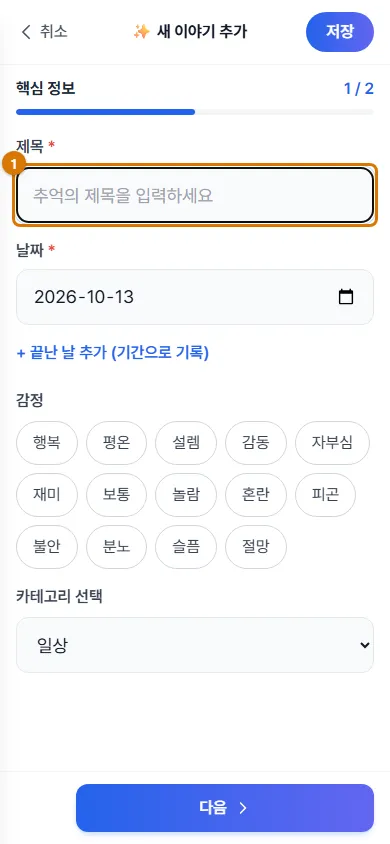
- Create Event: write a story on your current book's timeline. On a phone, the story window has two steps (Core Info → Content & Photos) — Write in the story window
- New Book: not under +. Make one from File in the menu at the top left (≡) — Make your first book
3. Phone or computer: what to do where
| What you want to do | Phone | Computer |
|---|---|---|
| Write stories and upload photos | ✅ Easiest here | ✅ (send phone photos by QR) |
| View the timeline | ✅ Top to bottom; turn on historical background with a button | ✅ Left to right, with rows of social events |
| Timegraph | ✅ List by year and detailed curve | ✅ Plus graph settings and videos |
| Read your book | ✅ Read book (scroll down) | ✅ Story View (turn pages like a book) |
| Timeline Gallery | Look around and open pieces | ✅ Decorate and save the exhibit |
| Photo Mosaic and Moment Book | ✅ You can make them | ✅ Better for editing text in detail |
| Download PDFs and share links | — | ✅ In Story View |
TipPeople you share with just open the link on their phone. They can see the book without signing up — Share your book with a link
Check
- A MyLifeBook icon appeared on your phone's home screen.
- You can write a new story right away with the + button.
If you get stuck
- I do not see the add-app bar
- If you tapped ✕ before, it is hidden for 7 days. You can add it yourself with Safari's Share button → Add to Home Screen.
- I opened it in KakaoTalk and cannot log in
- Google login is blocked in KakaoTalk's built-in browser. Tap "Open in another browser" — Sign up and log in
- The text is small
- Make the text bigger in your phone's settings. In Story View on a computer, you can enlarge the text up to 120%.
Next chapter → Part 2 examples — Organize your life with Classic Chronicle
This chapter matches the screens as of 2026-10-13. Button names update automatically with the app.