Turn a few photos into a short book with Moment Book
Moment Book gathers a few photos of one moment — a trip, an event, a single day — into a short A5 book. You do not have to write a long book: in a few minutes you get a book with a cover, prologue, scenes and epilogue.
When you are done, you can download your Moment Book as a PDF or send it as a link.
What you need
- 1–10 photos (on your computer, or sent from your phone by QR)
- You are logged in (needed to save to your library, share and use the AI draft)
1. Where to open it
- Type mylifebook.kr/quick-book in the address bar to open it directly.
- Simple mode: 📷 Moment Book in the top menu, or the Moment Book tab in the bottom menu on a phone
TipMoment Book is an early-access feature, so it does not have a button in the regular menu yet. Anyone can use it by opening the address.
2. Step 1: Setup and photos
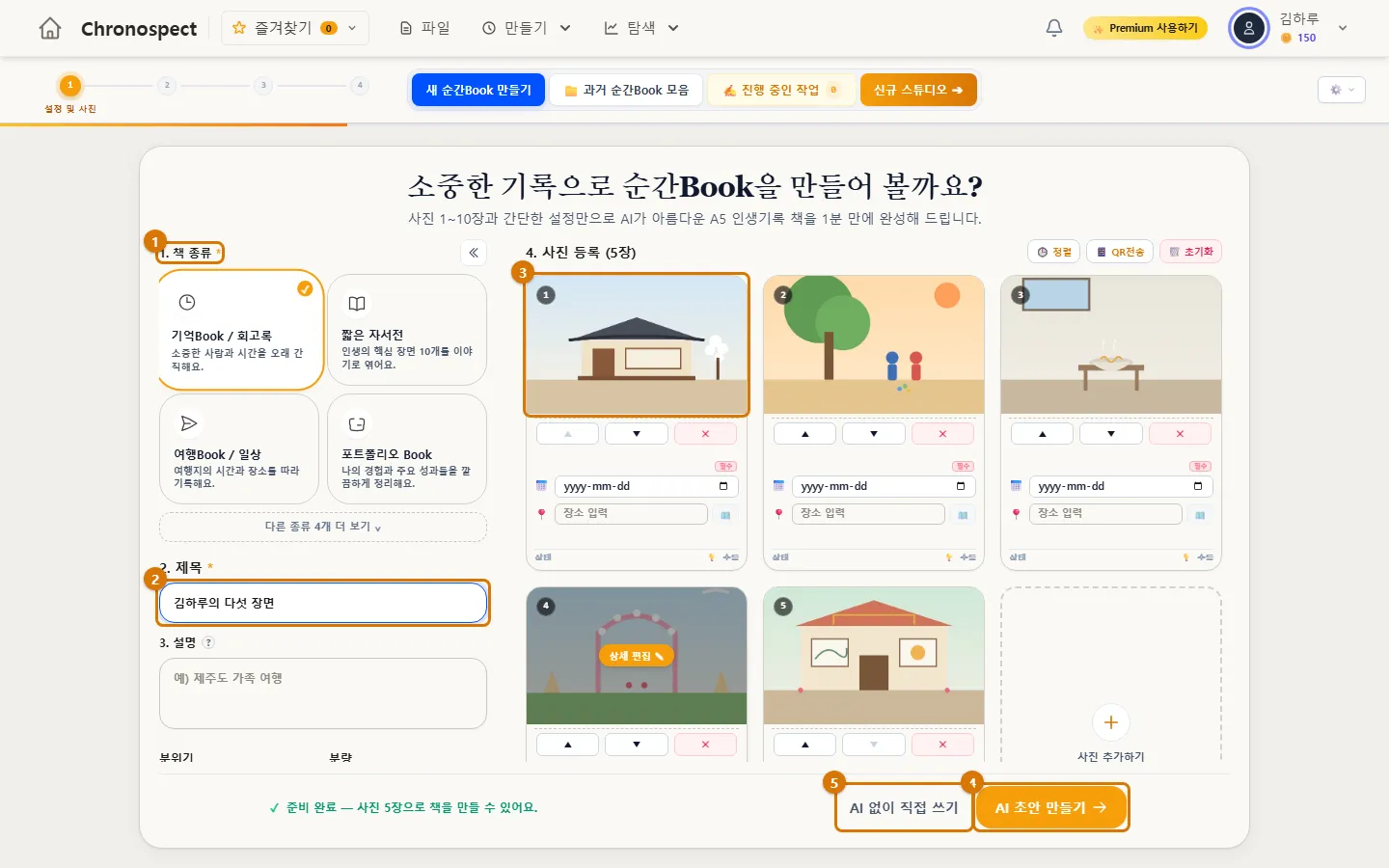
- Choose the kind of book (1). Memory Book / Memoir, Short Memoir, Travel Book / Daily Life and Portfolio Book appear first, and "See more kinds" shows 4 more.
- Write a title (2). This is required. Description, mood and length are optional.
- Upload photos (3). Drag them in or use "Choose files". Send photos from your phone with 📱 Send via QR. You can use 1 to 10 photos.
- Use ▲ ▼ on a photo card to change the order and ✕ to remove it. You can also drag cards to reorder them. You can add a date and place on each card.
- Click Create AI draft (4) and the AI looks at your photos and writes the text (uses AI credits). To do it without credits, click Write it myself without AI (5).
3. Step 2: Edit the story
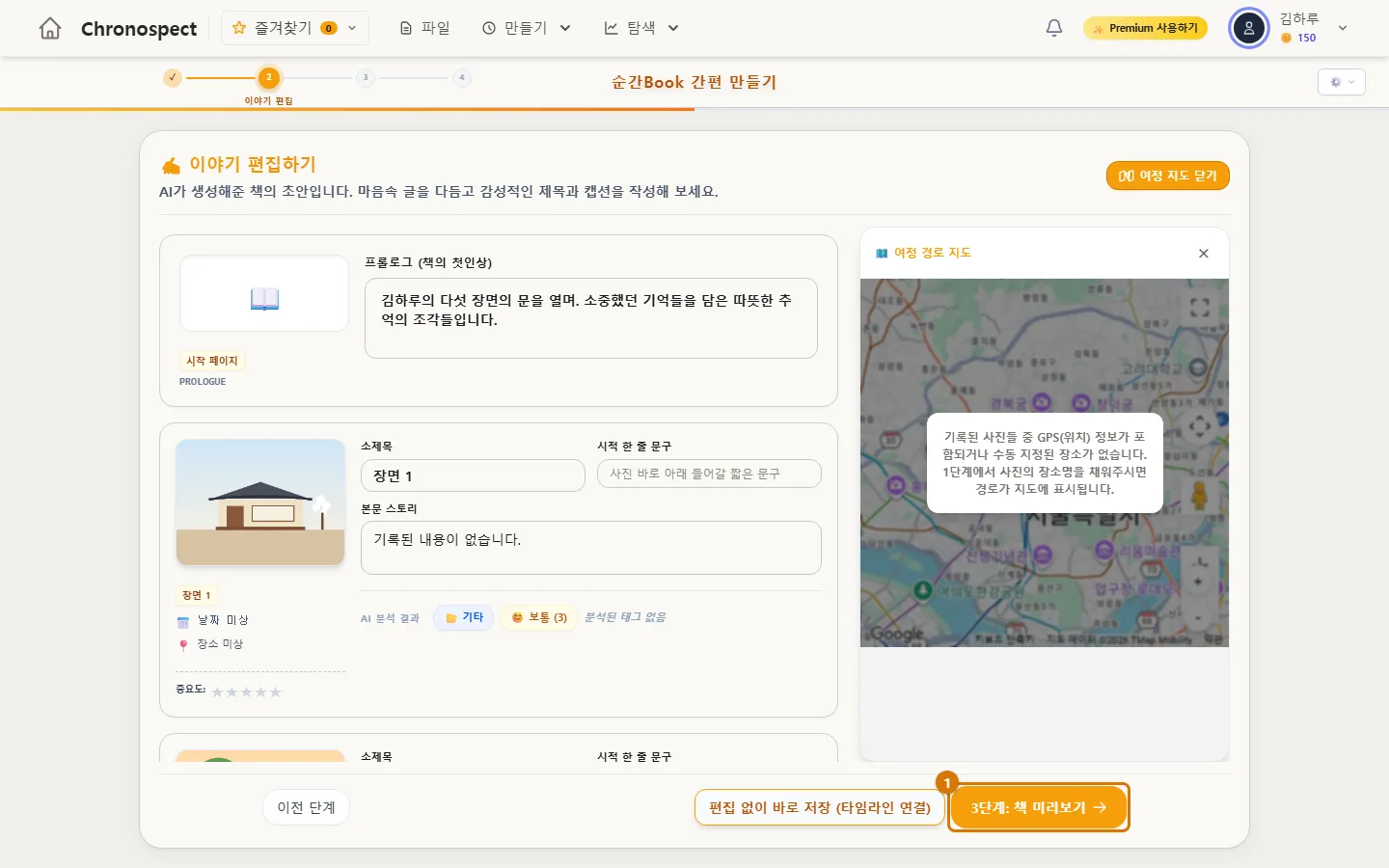
Edit the prologue; each scene's subtitle, poetic one-liner and story text; and the epilogue. If you added places, your route is drawn on the journey map on the right. When you are done, click Step 3: Book preview (1).
TipClick "Save now without editing (link to timeline)" to add the Moment Book scenes as stories on your book's timeline. For this, every photo needs a date.
4. Step 3: Preview and save
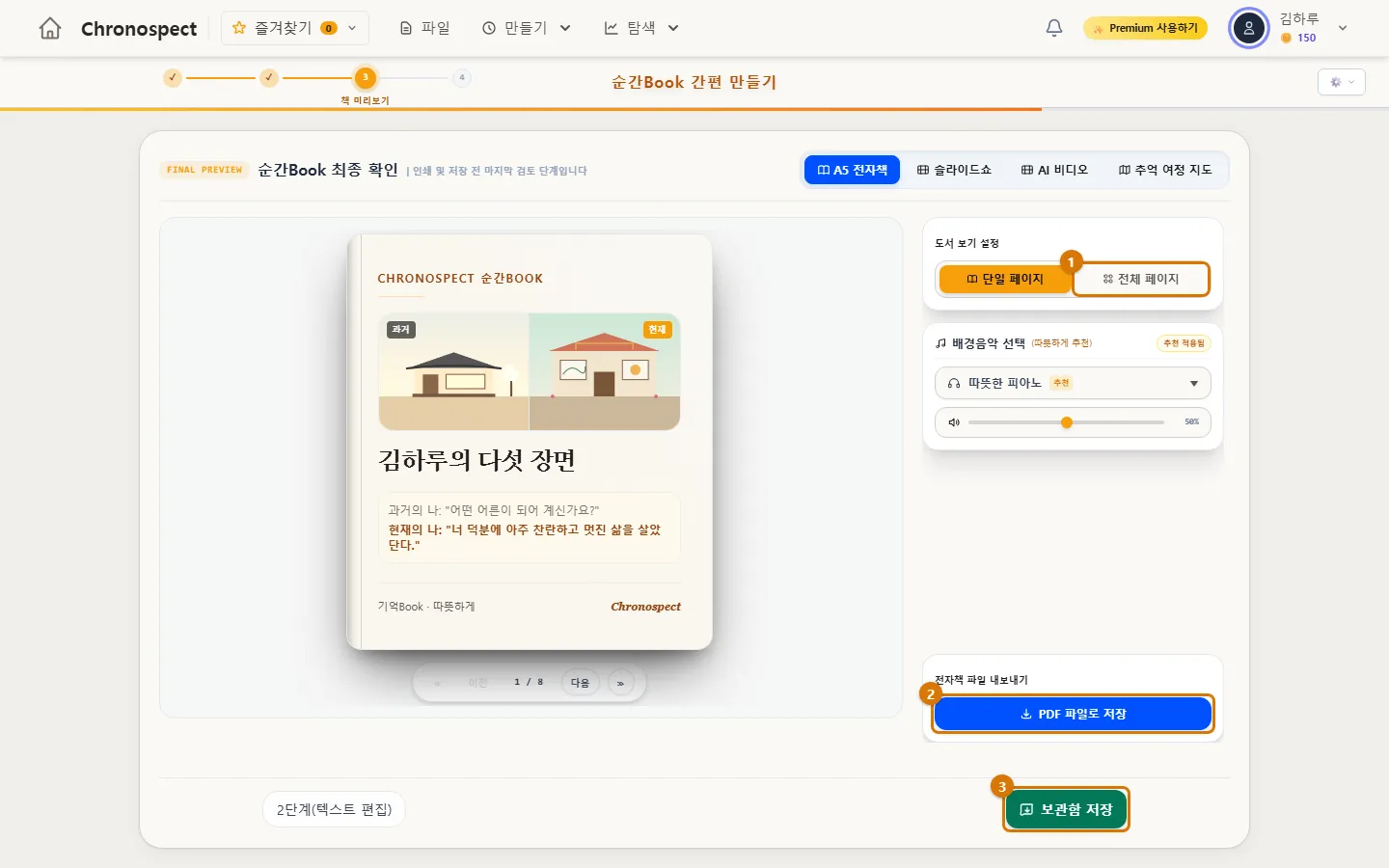
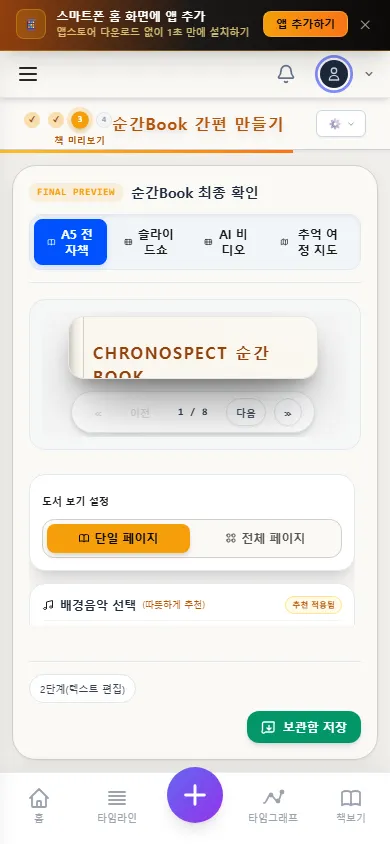
- Page through the book in the middle with Next and Previous. Click All pages (1) to see every page at once. At the top, you can also view it as a Slideshow, AI Video or Memory Journey Map.
- Choose background music to play with the slideshow.
- Click Save as PDF (2) to download an A5 PDF right away (no watermark).
- Click Save to library (3) to keep it in your library and move on to sharing in step 4.
6. On your phone
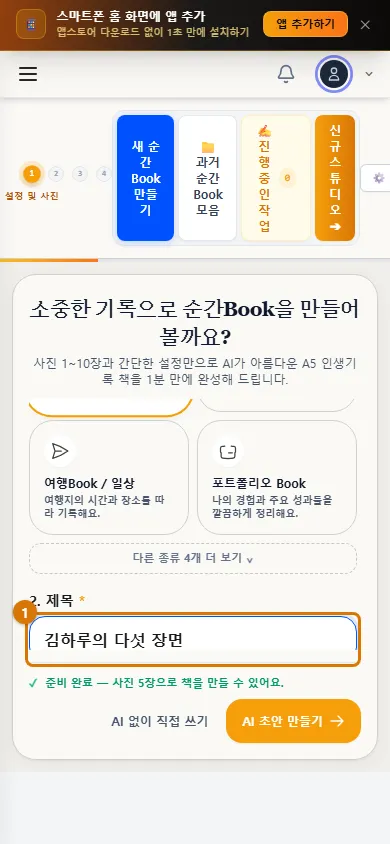
On a phone, photo cards show one per row. When you tap AI draft or write it yourself, step 2 is skipped and you go straight to the preview. To edit the text in detail, use a computer.
Check
- In the preview, you can page from the cover to the epilogue.
- You clicked Save as PDF and downloaded an A5 PDF.
If you get stuck
- The next step button is grayed out
- You need a book type, a title and at least 1 photo.
- It says you can upload up to 10 photos
- Moment Book allows up to 10 photos. For more, split them into several Moment Books or add them to a regular book.
- The AI draft is not created
- It stops if you do not have enough AI credits. You can still make it with Write it myself without AI.
Next chapter → Download a print-ready PDF
This chapter matches the screens as of 2026-10-09. Button names update automatically with the app.