Download a print-ready PDF
You can download your book as a PDF file to print or keep. Download it from Story View on a computer.
When you are done, your whole book is saved as a PDF file on your computer.
What you need
- A computer (Read book on a phone has no export)
- A book you have read in Story View — Read your book with Story View and Read book
1. The Export menu
Open Explore → Story View and click Export at the top right.
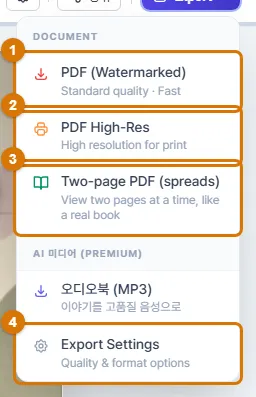
| No. | Item | Use it when |
|---|---|---|
| 1 | Quick download at normal quality. For viewing on screen or sending by email | |
| 2 | PDF High-Res | High resolution for printing. For printing on paper (takes longer to make) |
| 3 | Two-page PDF (spreads) | Two pages side by side, like an open book |
| 4 | Export Settings | Choose the font, accent color and text size (see 2 below) |
- Click the PDF item you want. It starts making the file right away without asking.
- You will see a "Creating PDF file..." message and a progress bar. With many stories, it can take a few minutes. Do not close the window.
- When it is done, it is saved in your browser's Downloads folder as "BookTitle_web_date.pdf" (high-res files say _print_).
NoteOn the free plan, a gray diagonal "Chronospect" watermark appears in the middle of every page after the cover. Paid plans can download "PDF (Premium)" with no watermark.
2. PDF settings
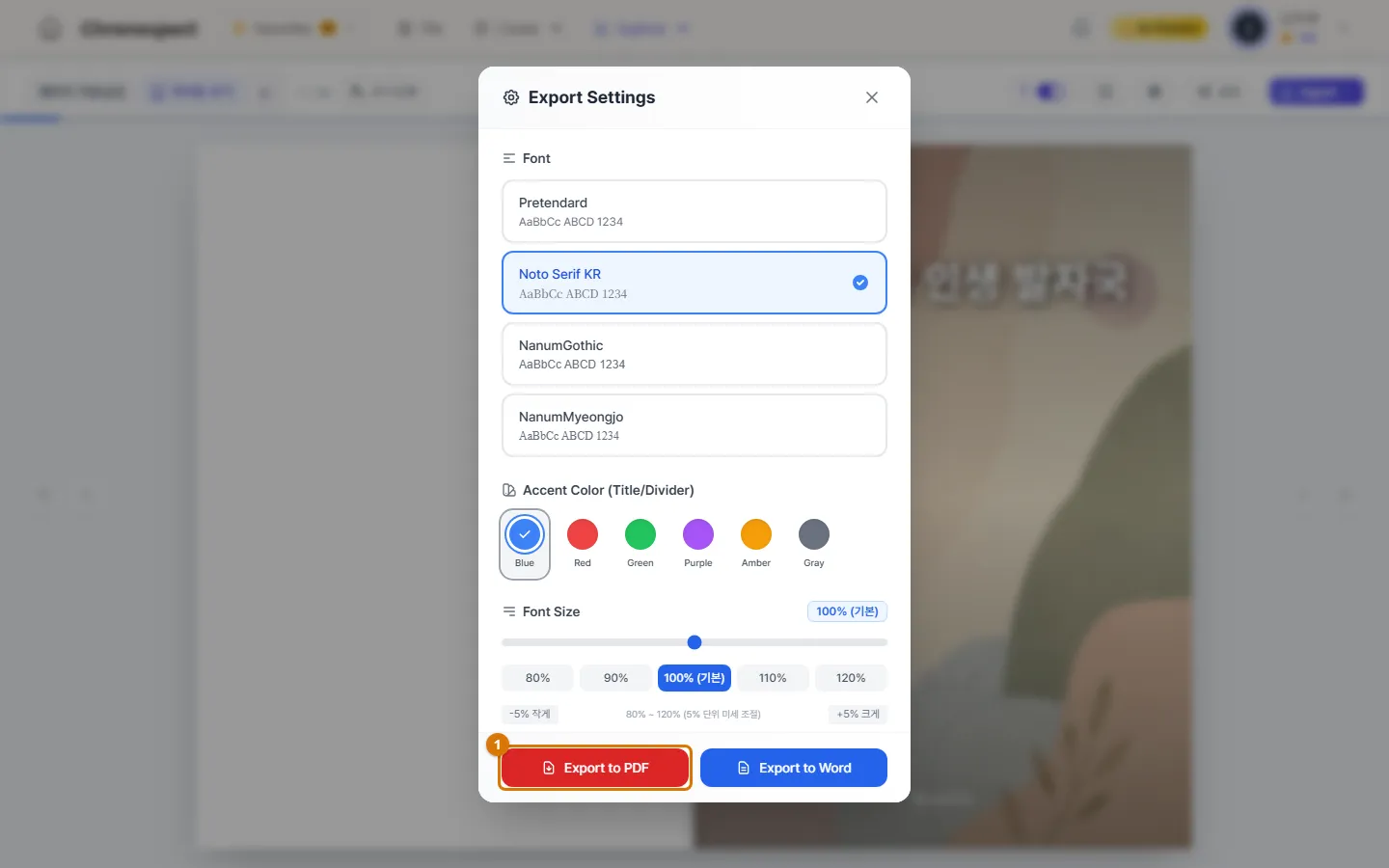
- Font: Pretendard · Noto Serif KR · Nanum Gothic · Nanum Myeongjo
- Accent color: the color of titles and dividers (blue, red, green, purple, amber, gray)
- Text size: 80–120%. For a book for older readers, we suggest 110–120%
- Print media QR codes: adds a QR code to pages with video or audio, so readers of the paper book can scan it with a phone
After choosing, click Export to PDF at the bottom of the window to download a high-res PDF with those settings right away. Your settings also apply to the PDF items in the Export menu. With Export to Word, you can also download a Word file you can edit.
Check
- A PDF file appeared in your Downloads folder.
- When you open the PDF, the cover and stories are in book page order.
If you get stuck
- I do not see the Export button
- It only shows on your own books. It is not on shared books or in Read book on a phone.
- My PDF has a watermark
- Free-plan PDFs include a watermark. Change your plan to download the finished version.
- It takes long or seems stuck
- Many photos make it slow. Try downloading a regular PDF first instead of PDF High-Res.
Next chapter → Share your book with a link
This chapter matches the screens as of 2026-10-09. Button names update automatically with the app.