See your stories on the places map
When you add places to your stories, those places gather in one spot and are drawn on a map. The number in a circle is how many stories you have there, and the lines are the trips between places. Pick a period on the year bar to follow where you were back then.
When you finish reading, you can add and edit places, and find and open stories by place and by period on the map.
What you need
- A few stories with places — section 6 of Write in the story window
- If many stories have no place, see Add places to stories in section 10 of Write in the story window
1. Open the place management screen
Click your photo at the top right, go to Profile and click the Manage Places tab. The place list is on the left and the map is on the right. On Premium and up, Journey → My Places opens the same screen.
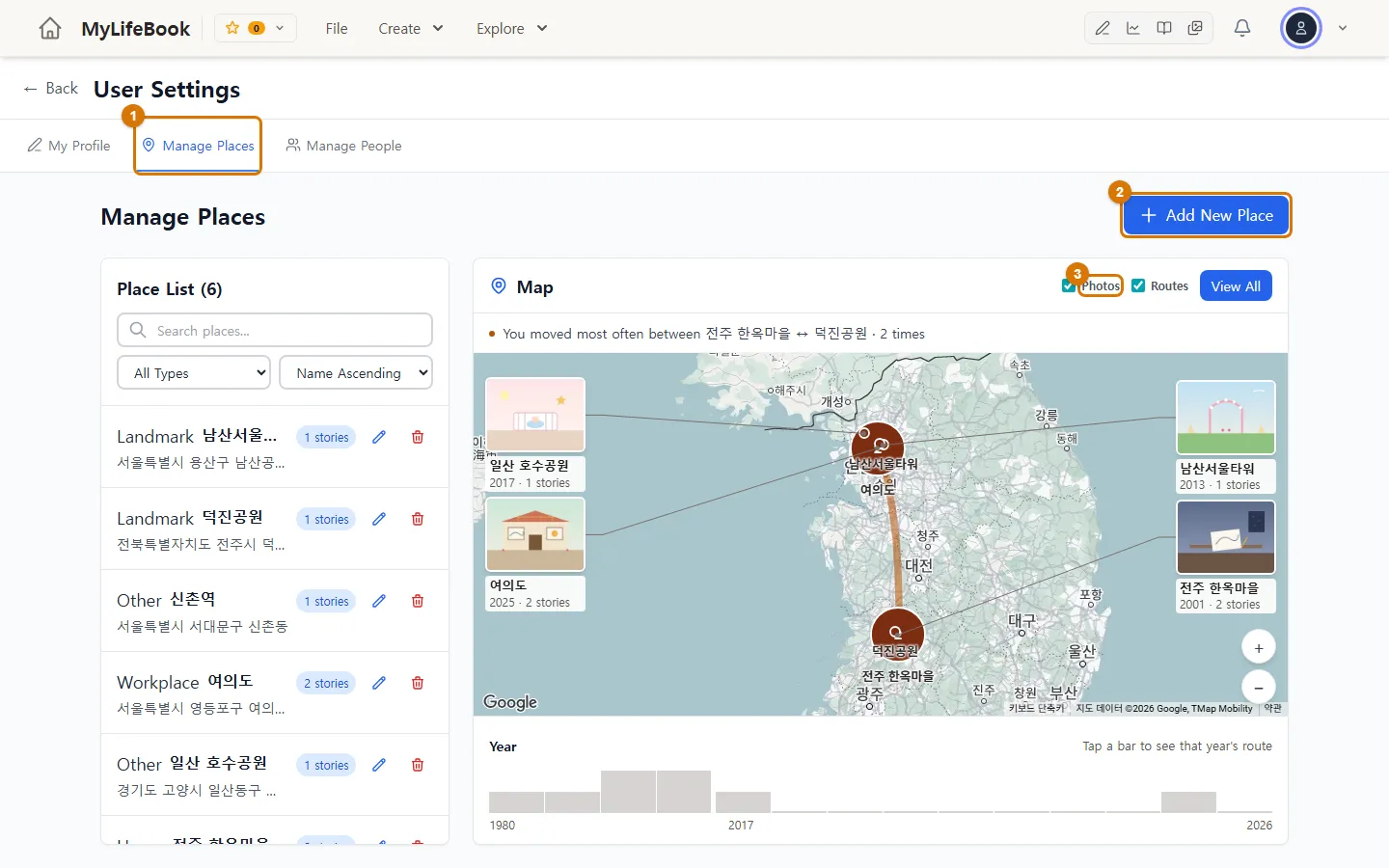
On a phone, tap List · Map at the top to switch between the list and the map. The phone list has no search, type or sort boxes.
2. The place list
- Type a name or address in the search box to narrow the list. The map also moves to those places. Clear it to go back.
- Change the list with type (home, restaurant, attraction, school, work, other) and sort (name, date added, story date).
- Click a row and the map flies to that place and opens its place card.
- Click the "n stories" chip on the right to open the list of stories at that place.
- The pencil edits and the trash can deletes. Deleting a place does not delete your stories — only the place is removed from them.
3. Add a new place
- Click Add New Place. When the window opens, click the Add New Place tab at the top (it first opens on the tab for choosing an existing place).
- Type a place name or address in the search box and click Search. You can also click the map to drop a pin yourself, and drag the pin to move it.
- Type the Place Name and choose the Place Type. The address is filled in from the pin's position.
- Click Save Location. It only works when there is both a position and a name.
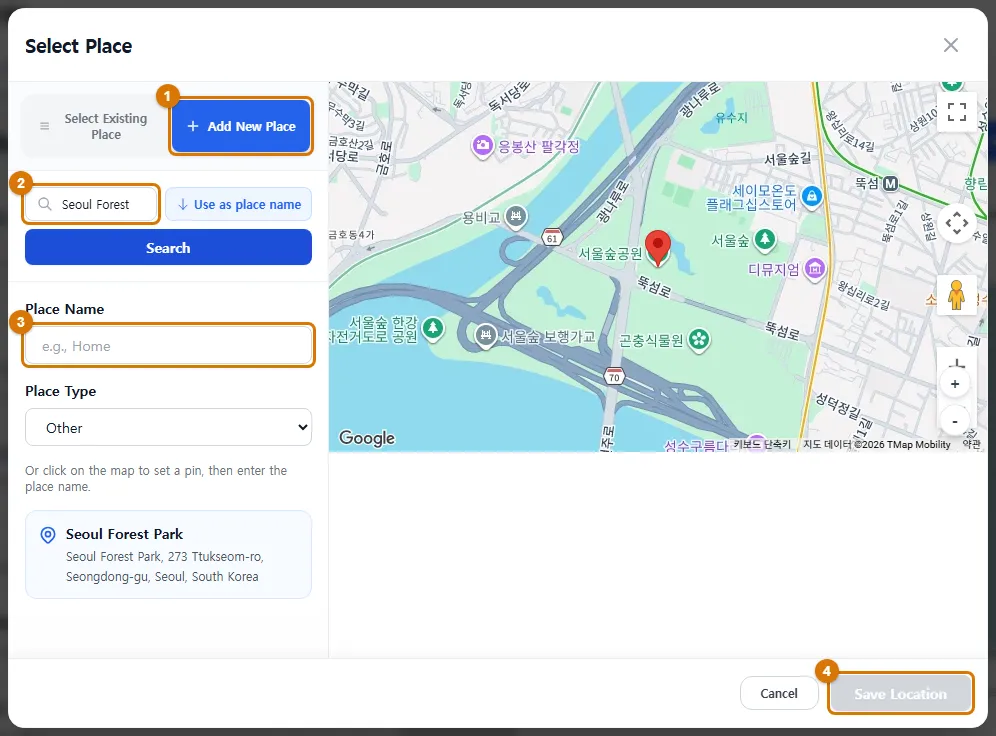
TipNew places you make while choosing a place in the story window also gather in this list. To edit one, click the pencil in the list — the save button changes to Complete Edit.
4. Reading the map
| What you see | Meaning |
|---|---|
| Circle and number | How many stories are at that place (or region) |
| Line | A trip between two places, joined in story date order. The thicker the line, the more often you went |
| Sentence line over the map | A summary, such as the two places you went between most or the place with the most stories. If there are several sentences, use Read more |
| Routes | Turn it off to hide the lines |
| View All | Clear the chosen period and place and go back to the first view |
| + / − | Zoom the map in or out. The mouse wheel and dragging work too |
If you have many places (more than 20, not counting far places), they first show as region circles by province or city. Seoul, Gyeonggi and Incheon are grouped together as the Seoul metro area ("수도권"). Click a region circle or zoom in far enough to see each place. Click the path line over the map (All › region › place) to go back a level. Esc or the back button also go back one level at a time.
Places more than 500 km from the center of the map (abroad, Jeju and so on) gather in the "Far places" box at the bottom left. Click a name to open that place card.
5. The place card
Click a circle or a row in the list to open the place card to the right of the map (below it on a phone).
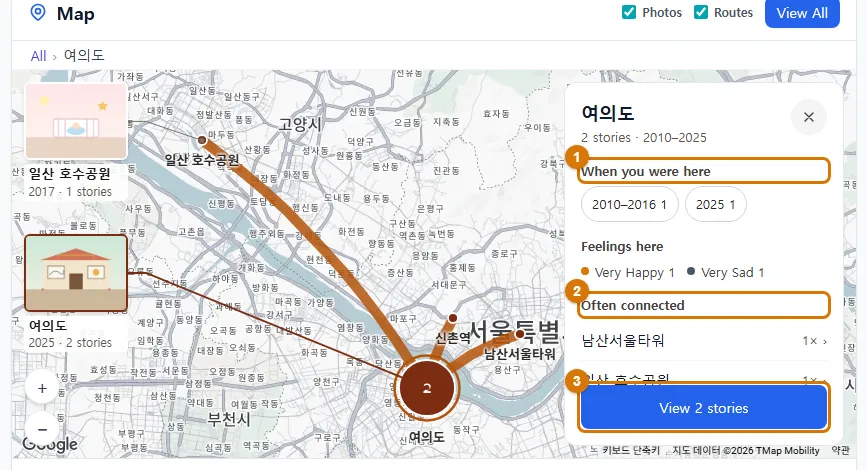
- When you were here: the periods when you have stories at this place, and how many. Click one to see only that period, and click again to clear it.
- People with you: people who were in your stories here. On Basic and up, click a name to jump to the relationship map.
- Feelings here: the emotions of the stories you wrote here, and how many.
- Often connected: places you often went to before or after this one. Click one to move to that place.
- Click "View n stories" at the bottom to open the Place Info window on the right. Click a story to read all of it right there. Go back with Story list.
6. See each period with the year bar
In the Year bar below the map, the last 10 years have one bar each, earlier years have one bar per decade (such as the 1980s), and everything before 1900 is one bar. The height of a bar is how many stories you have in that period.
- Click or drag on the bars to choose a period. Only the stories from that period stay on the map, and the trips are drawn as arrows in date order. The sentence line at the top changes to "how many stories in how many places" back then.
- Use ‹ › to move to the period before or after.
- Click All years to go back to all years.
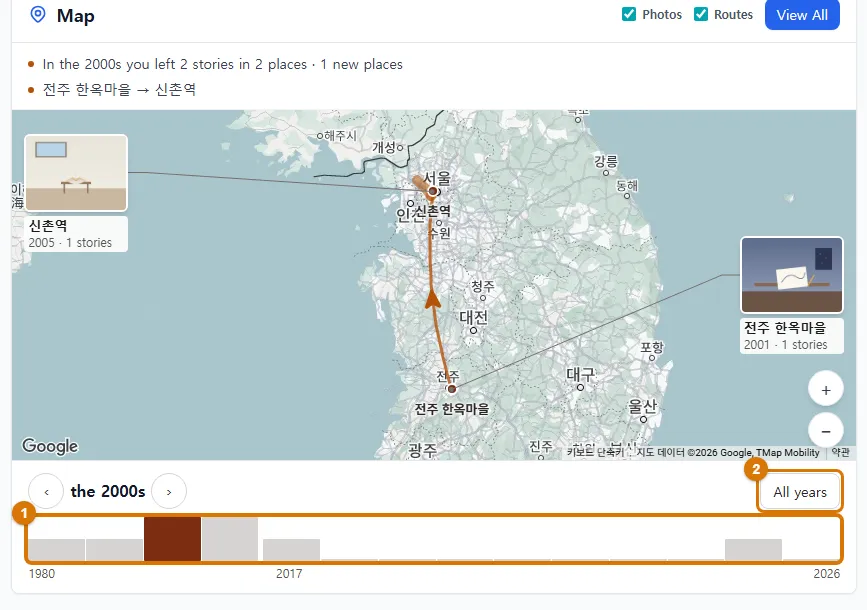
TipYou can move the bar with the keyboard too. Press Tab to reach the bar, then use ← → to move one bar at a time, and Home · End to go to the first or last bar.
7. See it in photos
If the stories at a place have photos, the latest photo from that place stands at the side of the map, with a line pointing to its dot. Under the photo are the place name, the years and the number of stories. Click a photo to move to that place and open its place card.
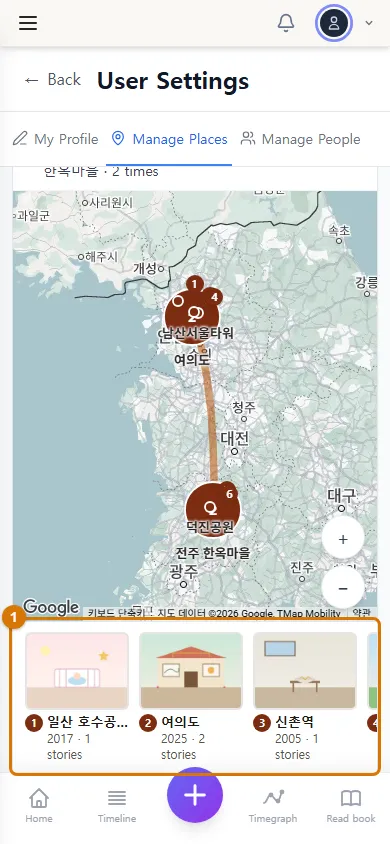
- On a phone, map dots only get a number, and the photos with the same numbers gather in a strip below the map. Swipe the strip sideways.
- When you choose a period, only photos of places from that period show. Photos do not show while places are grouped into regions — click a region or zoom in.
- Uncheck Photos next to the map title to hide the photos. This device remembers that you turned them off.
8. Add places to stories without one
Stories without a place do not show on the map. If you see a "stories without a place" line above the list and the map, click Tidy up places to add places to many stories at once. For how, see section 10 of Write in the story window.
Check
- Your places show in the list, and circles and lines are drawn on the map.
- When you choose a period on the year bar, only the places from that time stay.
If you get stuck
- The map only says "Add a place and it appears on the map"
- You do not have a place with a position (coordinates) yet. In Add a new place, search or drop a pin and save.
- I have places but no lines
- Lines appear when you add places to your stories. Add stories to two or more places and lines join them in date order.
- I do not see the year bar
- It shows when you have trips between places and your stories cover two or more periods.
- My Places is not in the Journey menu
- The Journey menu is for Premium and up. You can use the same screen from the Manage Places tab in your profile.
Next chapter → Read your book with Story View and Read book
This chapter matches the screens as of 2026-11-25. Button names update automatically with the app.