Make a Photo Mosaic
A Photo Mosaic uses the photos in your book as small pieces (tiles) to redraw one photo you choose. From far away it is one big picture; up close, it is all the photos from your stories.
When you are done, you can download the mosaic as a JPEG or PNG file.
What you need
- A book with at least 12 photos (50 or more looks smoother) — Write in the story window
1. Make it
Click Explore → Photo Mosaic. Everything is processed on your own computer (your photos are not sent anywhere).
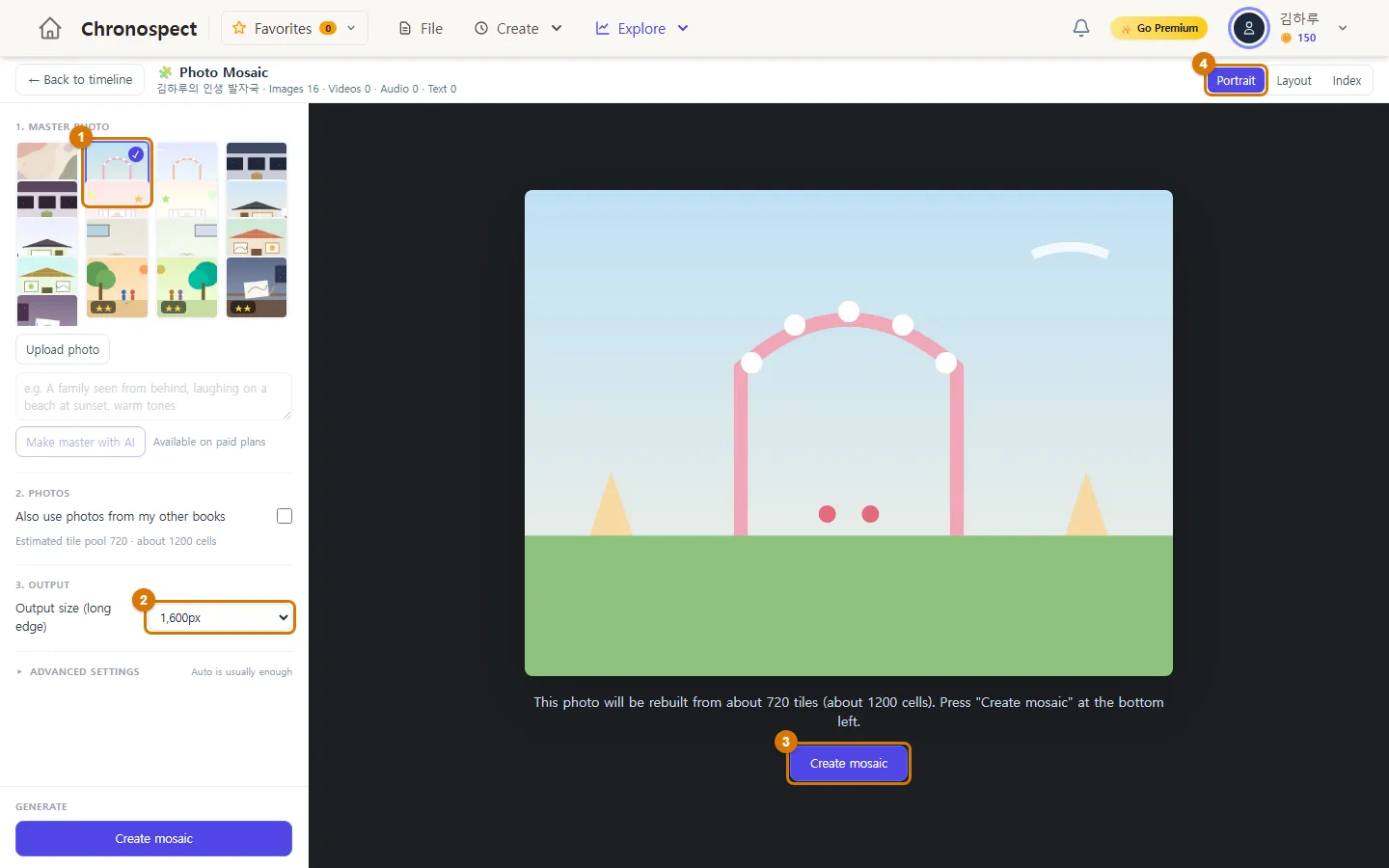
- 1. Master photo: choose the large photo to redraw (1). Pick one from your book, or use your own file with Upload photo. Photos with clear shapes, like faces or buildings, work best.
- 2. Photos: the photos used as pieces. Photos from this book are used automatically. Check "Also use photos from my other books" to use more.
- 3. Output: choose the output size (long side) (2). The free plan goes up to 2,048px.
- Click Create mosaic (3). It takes from a few seconds to a few tens of seconds.
TipAt the top right (4), besides Portrait, you can also try the Layout (grid layout) and Index (photo catalog) styles.
2. View and download the result
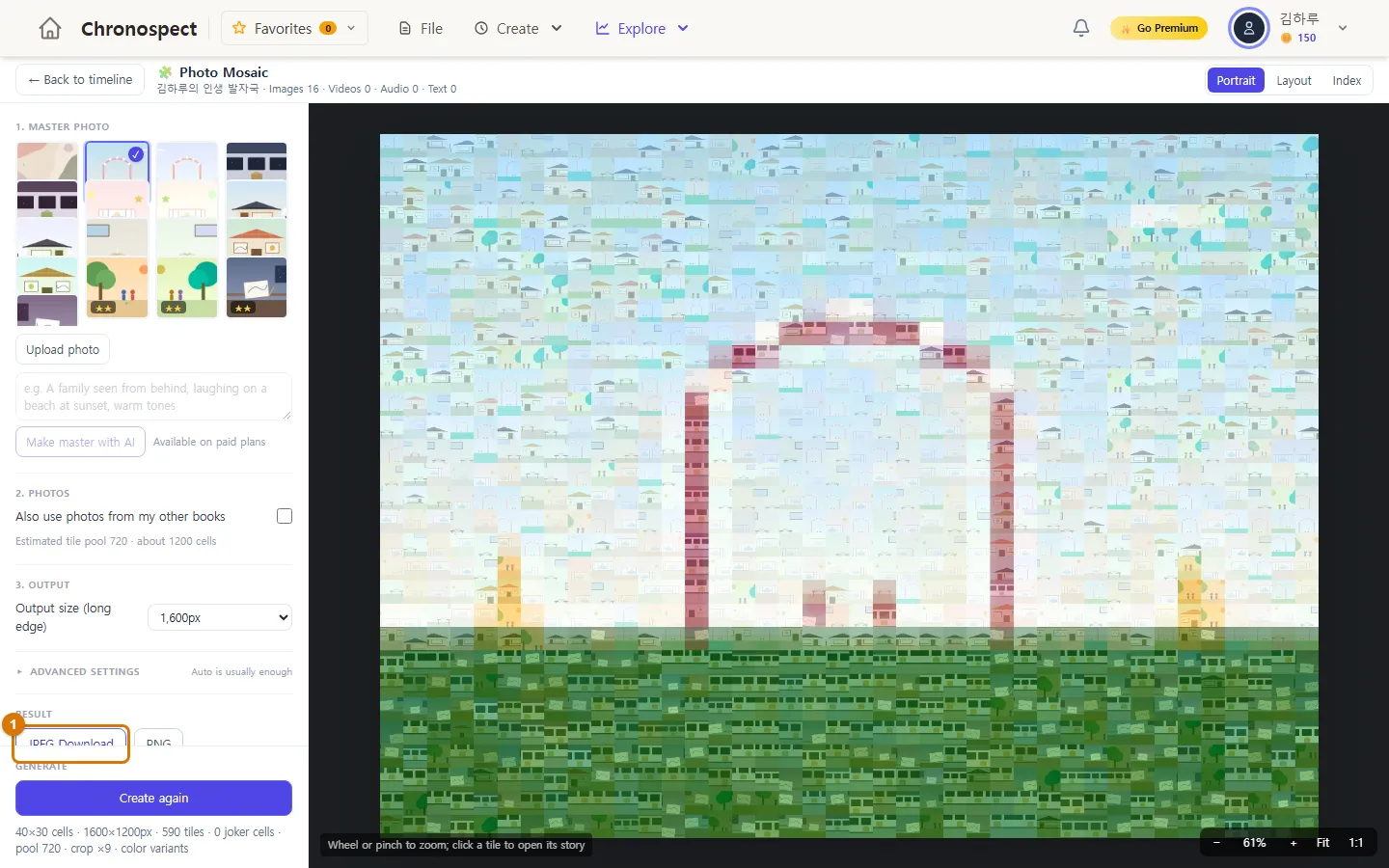
- Zoom in with the mouse wheel. Every piece is one of your photos. Click a piece to open its story.
- Download the file with JPEG download or PNG (free, no watermark).
- If you do not like it, change the master photo or the advanced settings (such as grid density) and click Create again.
TipPreviewing and downloading are free. Setting it as a cover, saving it to a book, share links, large output of 2,560px or more, print PDFs and zoom-in videos are paid-plan features.
3. On your phone
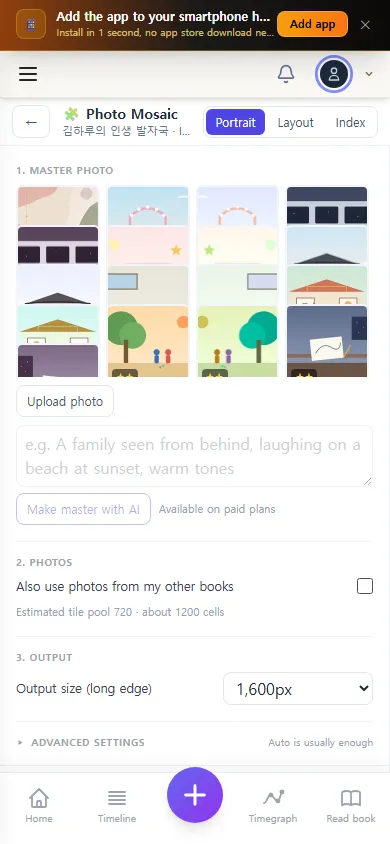
You can make one on a phone too. The settings are at the top and the result is below. When it is done, the screen scrolls down to the result automatically.
Check
- The photo you chose was redrawn from pieces of your own photos.
- You downloaded a JPEG file.
If you get stuck
- It says at least 12 photos or videos are needed
- Add more photos to your stories, or check "Also use photos from my other books".
- The same photos repeat too much
- With fewer than 50 photos, there is more repetition. Add more photos for a smoother result.
Next chapter → Turn a few photos into a short book with Moment Book
This chapter matches the screens as of 2026-10-09. Button names update automatically with the app.