D. Books written together — Moa Book & Voice Book
A Moa Book is a book where family and colleagues each send one story for one person — for a 60th or 70th birthday, a retirement, a memorial, a graduation or a farewell — and it is bound into a single volume. A Voice Book is a book where you ask one person questions and keep their spoken answers.
When finished: you read it together as a web book, and you can order a paper book to give as a gift. Scan the QR code in the paper book to hear the sender's own voice.
What you need
- The guest of honor's name (e.g. Kim Sunja), the event date and the story deadline (both optional)
- KakaoTalk or text messages to send to the people who will write stories
1. Where to start
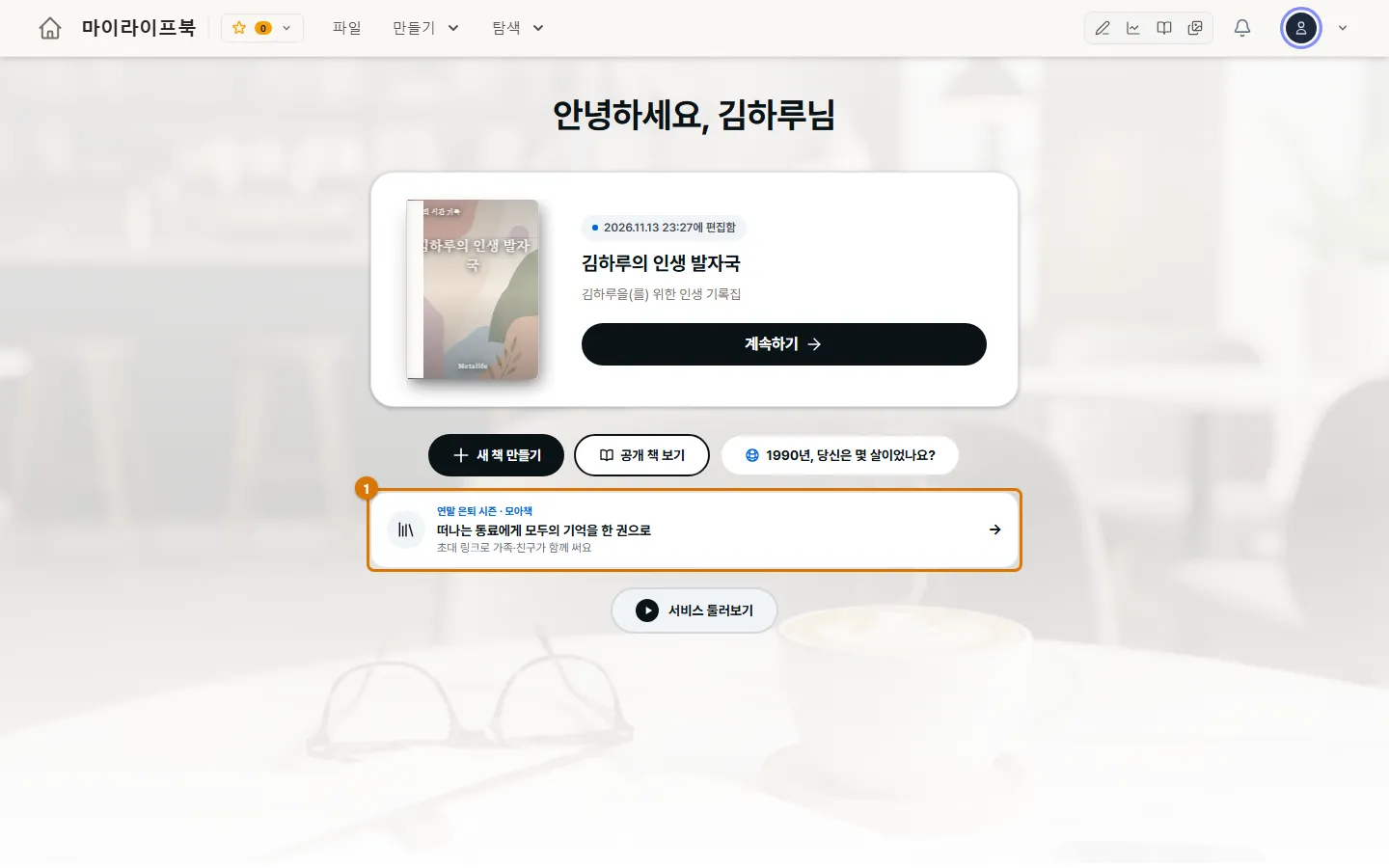
- Card at the top of Home (1): it changes by month. November and December show retirement, April and May show the Voice Book, and other months show holiday, 60th or 70th birthday cards.
- Computer: Create in the top menu → Moa Book or Voice Book
- In the Create New Book window, Moa Book, written together or A book told in your voice
2. Make a Moa Book
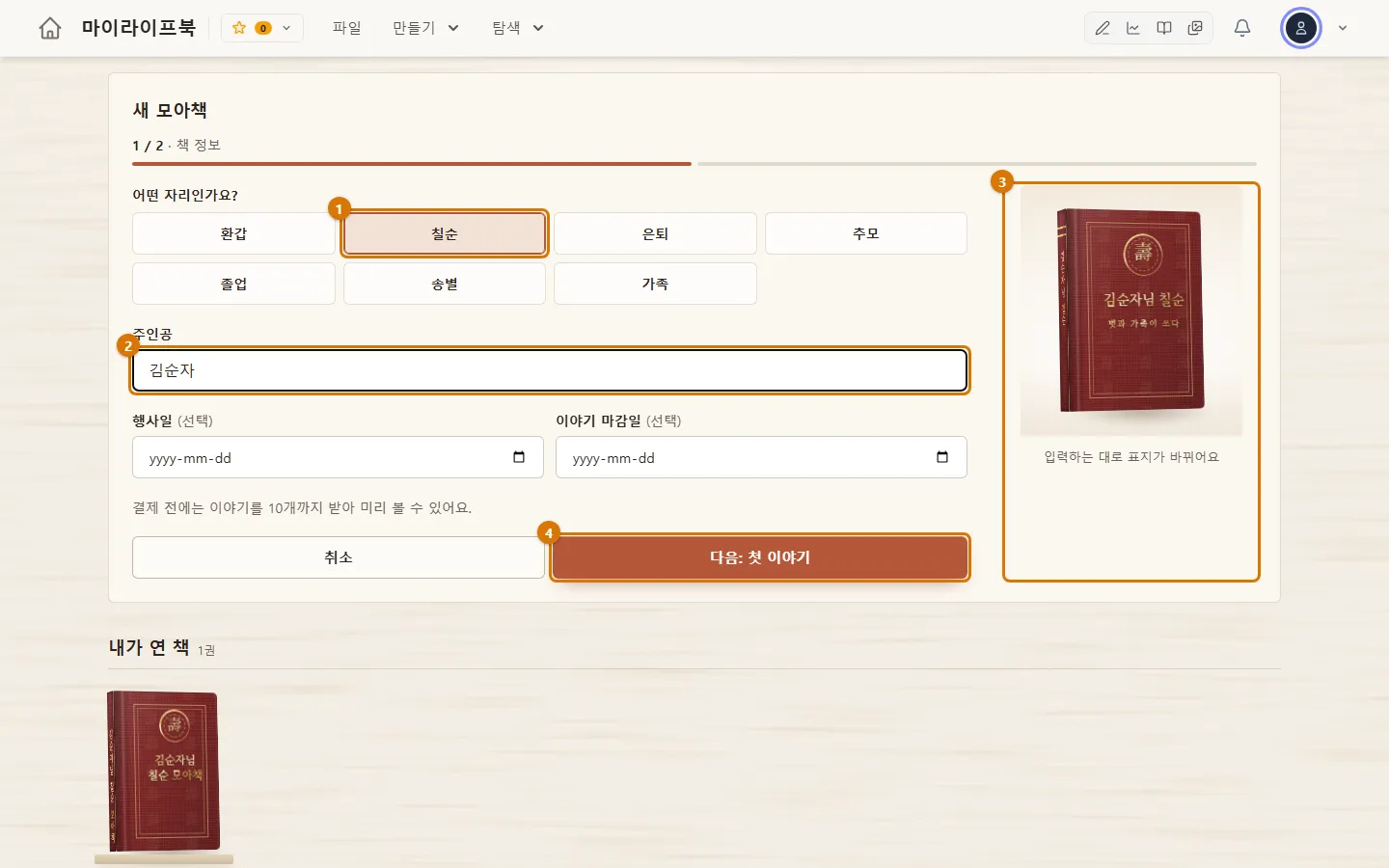
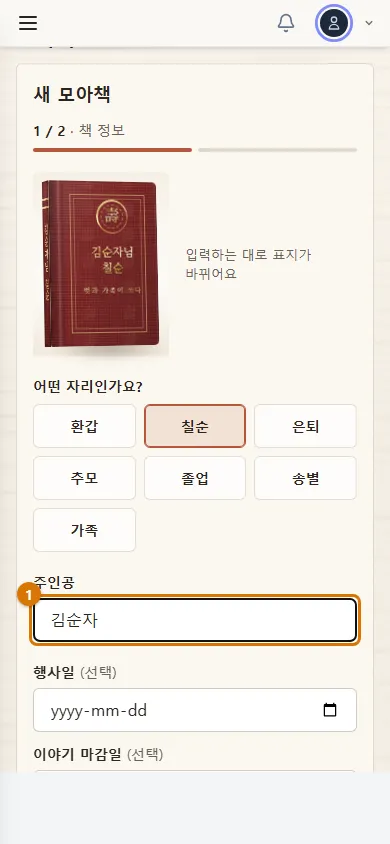
- In What's the occasion? (1), choose the occasion: 60th birthday, 70th birthday, retirement, memorial, graduation, farewell or family.
- Write the guest of honor's name (2). This is the only required field. You can leave the event date and story deadline blank.
- The cover changes as you type (3). When you like it, click Next: first story (4).
- If the person who opened the book writes the first story, invited people can more easily see what to write. To write it later, click Skip to book dashboard.
3. Gather stories
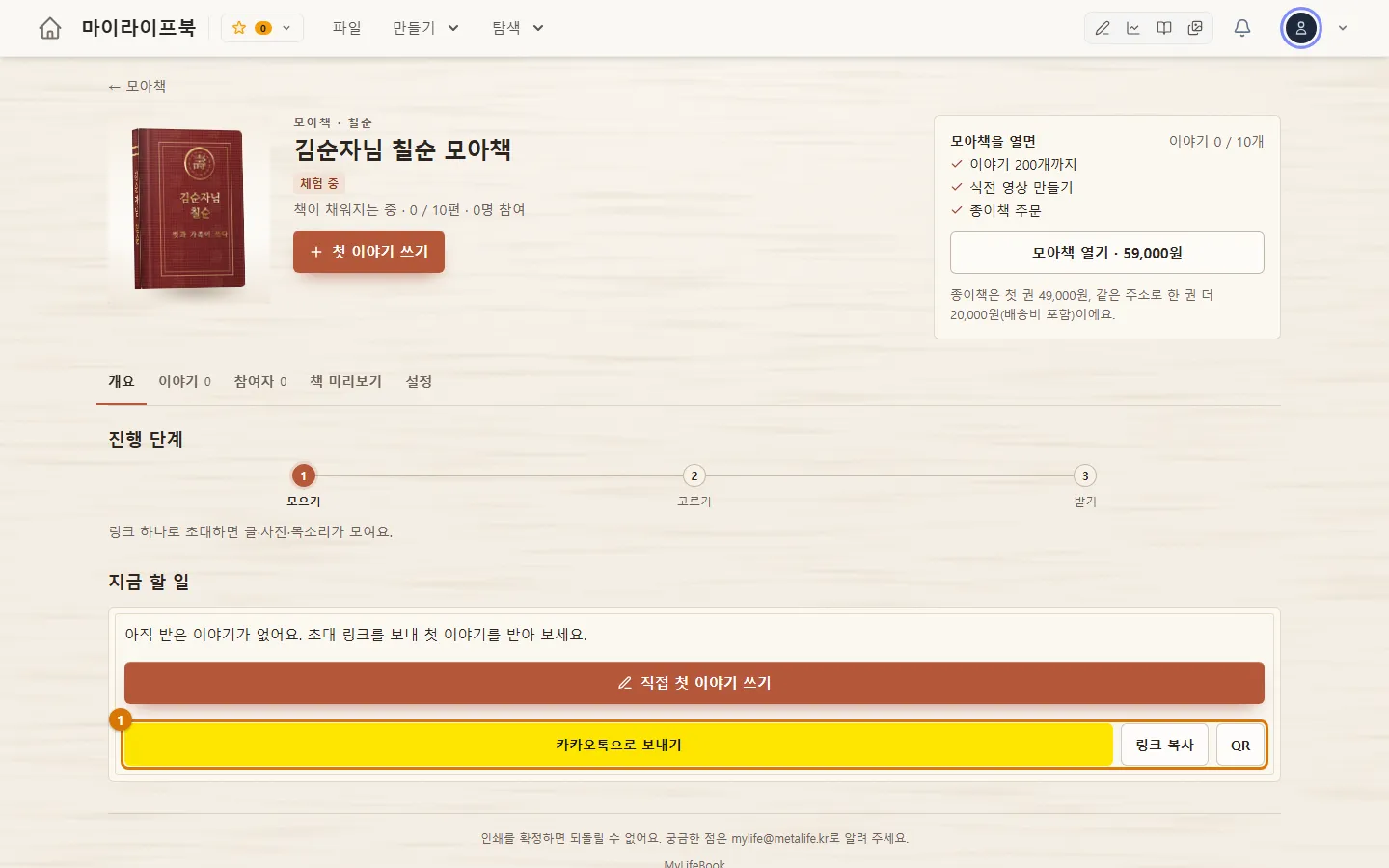
- On the Manage book screen, send invitations with Send via KakaoTalk · Copy link · QR code (1). Invitees log in with Kakao or Google and click Join to send a story. The sender chooses how their name appears (name and relationship, relationship only, or anonymous).
- For older people who find phones difficult, make a personal answer link for each person. Without logging in, they answer each question by speaking and can attach up to 5 photos.
- Stories are added to the book only after the person who opened it reviews them. Stories that are not reviewed do not go into the book.
- At the event, put up the Celebration Wall QR code. Guests leave a short message without logging in, and only the messages chosen by the person who opened the book appear on screen.
TipYou can report an uncomfortable message (personal information · not true · offensive · other). The person who opened the book can hide a reported message or leave it as is.
4. How a Voice Book is different
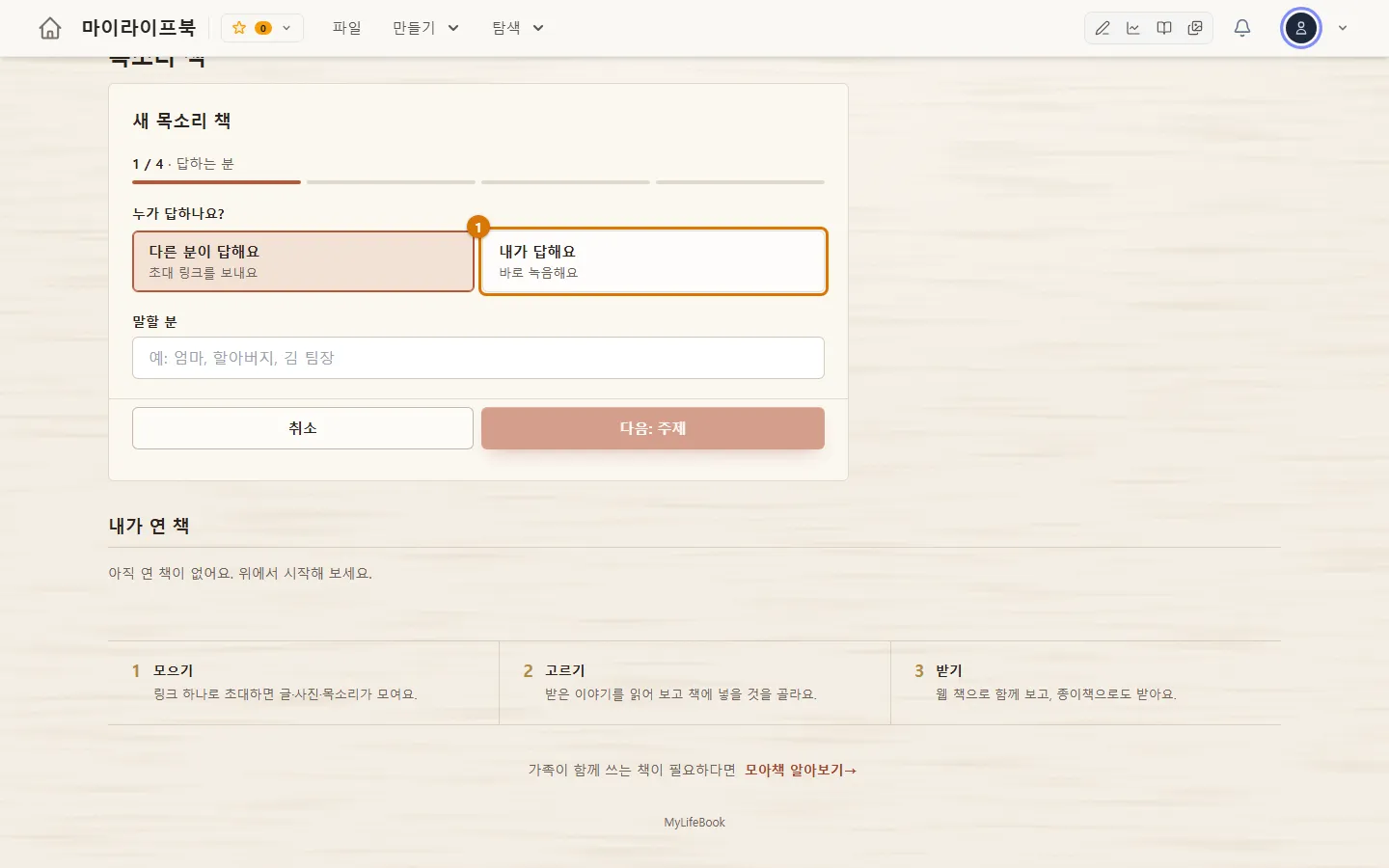
- Choose who answers (1). If you choose I'll answer, the recording screen opens as soon as the book is made. If you choose Someone else answers, an invitation link to send to that person is prepared.
- Choose a topic: life story · words for my child · work story · travel journal · family recipes.
- Remove or add questions. At least one must remain. You can edit them after the book is made, too.
- Check how you will receive answers and click Create or Create and answer now.
If the speaker finds phones difficult, the person who opened the book can record for them in person. If the speaker allows their voice to be used "for this book only", a paid book can include an audiobook read in their voice (30 minutes included). If they withdraw permission, the audiobook made with that voice is deleted too.
5. Free trial, payment and paper books
| Moa Book | Voice Book | |
|---|---|---|
| Before payment (trial) | Up to 10 stories | Up to 5 stories |
| Open the book (payment) | KRW 59,000 · up to 200 stories · opening video | KRW 39,000 · up to 200 stories · voice collection |
| Paper book | First copy KRW 49,000, each extra copy to the same address KRW 20,000 (shipping included, up to 10 copies) | Same · voice QR codes on the pages |
- There is no limit on how many people take part. Hidden stories do not count toward the total.
- The person who opened the book can pay, or an invitee can pay instead with "I'll pay for the book". Only the person who opened the book can see who paid.
- To order a paper book, first click Confirm printing. After you confirm, no new stories are accepted and stories in the book cannot be edited.
- Make the opening video in Chrome or Edge on a computer. The payment button does not appear inside the phone app — pay on the web (mylifebook.kr).
NoteA refund of the book price is possible only within 7 days of payment, if no stories from other people have been received yet, the audiobook has not been used, and printing has not been confirmed. A paper book can be canceled only until printing starts (while the order is received).
Check
- Stories sent by invitees appear on the Manage book screen.
- The web book opens in the book preview.
If you get stuck
- It says I cannot receive more stories
- Before payment, a Moa Book takes up to 10 stories and a Voice Book up to 5. Open the book (payment) to receive up to 200. Hiding stories you do not need removes them from the count.
- A sent story does not appear in the book
- The person who opened the book must review it first. Check the Stories tab in Manage book.
- There is no payment button in the phone app
- Payments are not accepted inside the app. Log in on the web (mylifebook.kr) to pay.
Next chapter → Part 3 troubleshooting — I cannot log in
This chapter matches the screens as of 2026-11-14. Button names update automatically with the app.