Get to know the home screen and menus
After you log in, the home screen opens. From here you make a new book or go into a book you are working on. On a computer you use the menu at the top; on a phone, the menu at the bottom.
When you finish reading, you will know which menu has the feature you want.
What you need
- You are logged in — Sign up and log in
1. The home screen
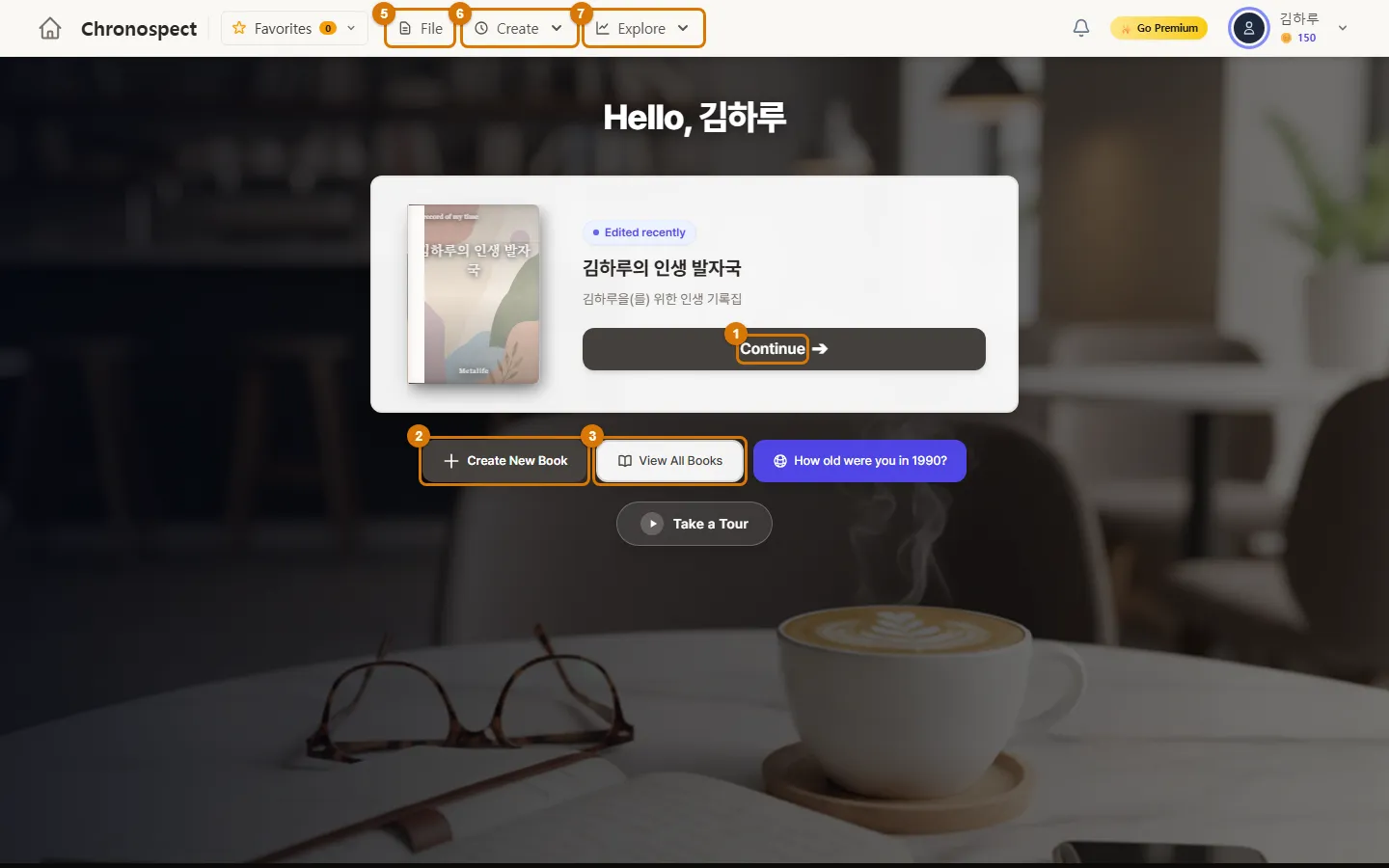
| Button | What it does |
|---|---|
| Continue | Takes you straight to the timeline of the book you edited last |
| Create New Book | Pick a template and make a new book — Make your first book |
| View All Books | Browse books other people have made public |
| "How old were you in (year)?" | An era screen that gathers stories people wrote about the year you were around twenty |
| Take a Tour | A slideshow tour of the service, from recording to books, exhibits and career documents |
TipIf you just signed up and have no books yet, a "Start your first life record in 10 seconds" card appears in the middle. Click it to open the new book window.
2. Computer: the top menu
From the left: Home, ★ Favorites, File, Create and Explore. On the right are notifications and your name (the user menu).
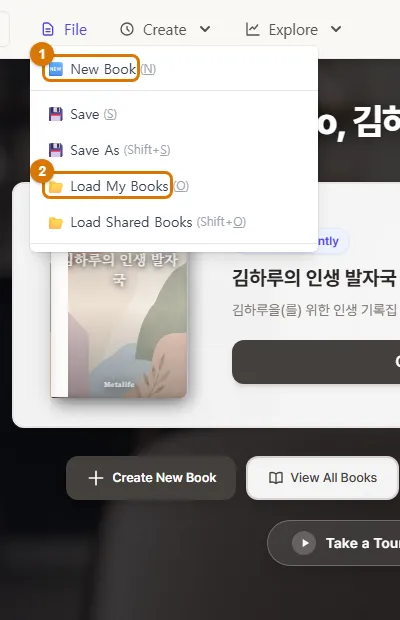
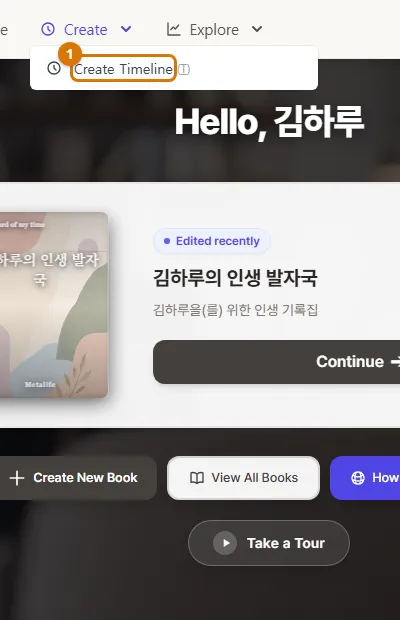
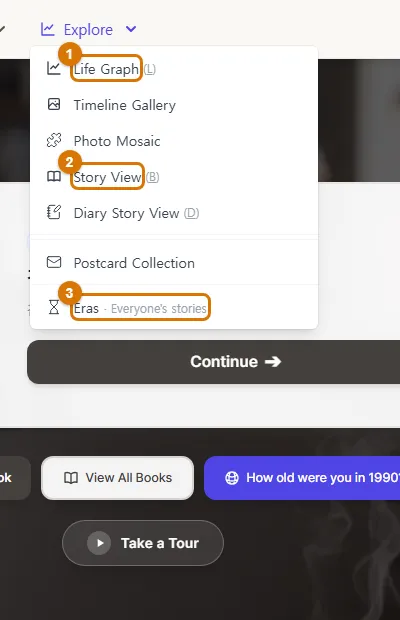
| Menu | Common items |
|---|---|
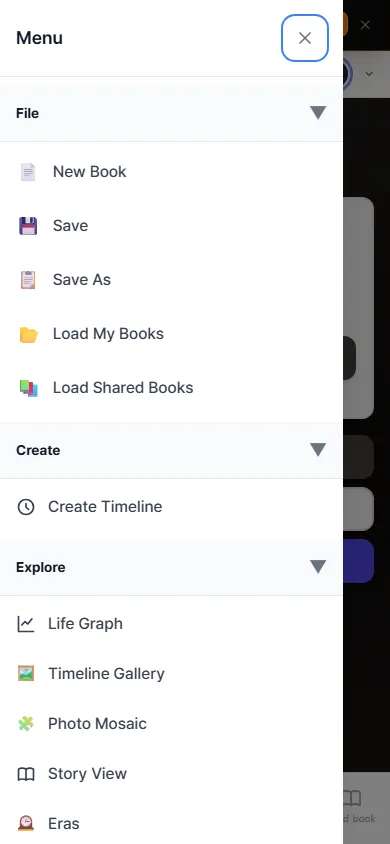
| File | New Book · Save · Go to My Library · Load Shared Books |
| Create | Create Timeline (you add stories on the timeline screen) |
| Explore | Life Graph · Timeline Gallery · Photo Mosaic · Story View · Postcard Collection · Eras |
TipGrayed-out menus are paid-plan features. Click one to see the plan options. Click the ☆ next to a menu you use often to add it to your favorites (up to 7), so you can open it right from the front.
3. Phone: the 5-tab bottom menu
| Tab | What it does |
|---|---|
| Home | The home screen |
| Timeline | The timeline of your current book |
| + in the middle | Create Event or make a new book |
| Timegraph | See your stories as an emotion graph |
| Read book | Read your book like a book |
For other menus, tap ☰ (Open Menu) at the top left. Logout and language settings are under your photo at the top right (the user menu).
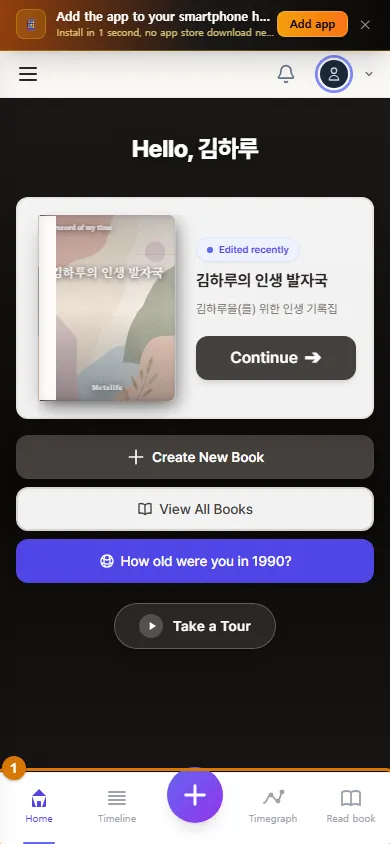
TipTimegraph and Read book open after you pick a book. If you have no book, they take you back home. When you see the "Add the app to your smartphone home screen" bar at the top, tap Add app so you can open it from an icon on your phone's home screen next time.
Check
- You can get into your book from home with Continue.
- You can find the timeline and book view in the top menu on a computer and the bottom menu on a phone.
If you get stuck
- I do not see menu items like Career or Journey
- These features are open to only some users for now.
- I tapped Read book on my phone and it went back home
- First pick a book on the home screen and go in with Continue.
Next chapter → Make your first book
This chapter matches the screens as of 2026-10-13. Button names update automatically with the app.