Make your first book
Every book starts from a template. Each template comes with question flags like "Memories from age seven" or "My first job", so when you make the book, story slots are already placed on the timeline.
When you are done, your book's timeline opens and you can fill in the question flags one at a time.
What you need
- You are logged in — Sign up and log in
- Your date of birth (filled in automatically if you entered it when signing up)
1. Open the new book window
- The Create New Book button on the home screen
- Computer: File at the top → New Book
- Phone: the + button in the middle at the bottom → New Book
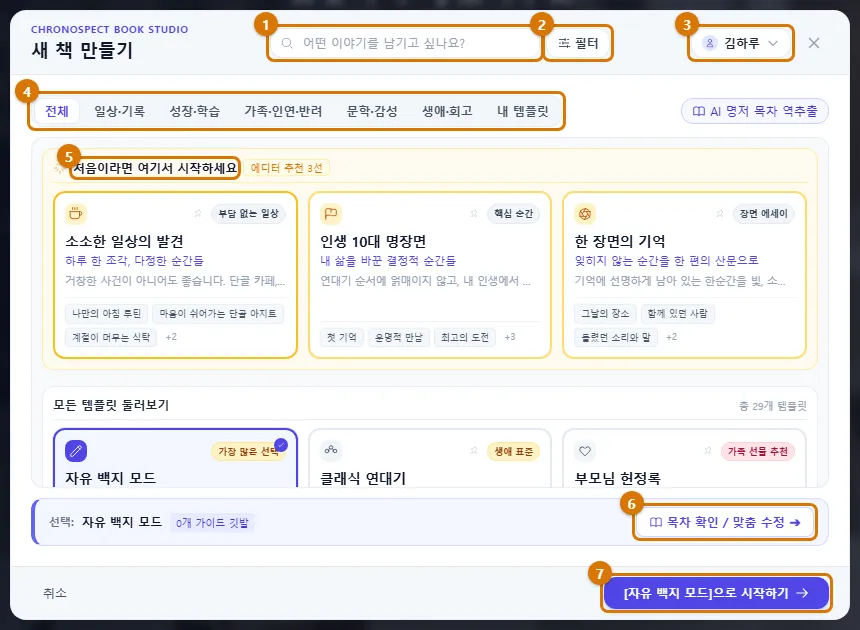
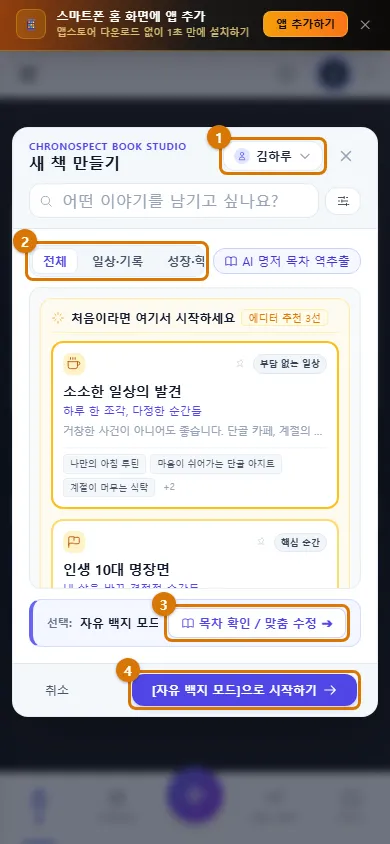
| No. | What it does |
|---|---|
| 1 Search box | Type something like "parents" or "travel" and only matching templates remain |
| 2 Filter | Narrow by purpose, how you will write and expected length |
| 3 Main character | Decide whose book it is (yourself by default) |
| 4 Category tabs | All · Daily Life & Notes · Growth & Learning · Family, Bonds & Pets · Literary & Emotional · Life & Reflection · My Templates |
| 5 Top 3 picks | If this is your first time, choose from here |
| 6 Review contents | Preview and edit the contents of the template you picked |
| 7 Start | Make the book and go to its timeline |
2. Choose the main character
If it is your own story, leave it as is. If the book is about a parent or your child, click the main character button at the top right to change it.
- Click the main character button (it says "Myself" at first).
- Under Relationship to this person, choose one of Myself, Mother, Father, Spouse, Child, Acquaintance or Enter your own.
- Check the name, year of birth and gender, then click Confirm.
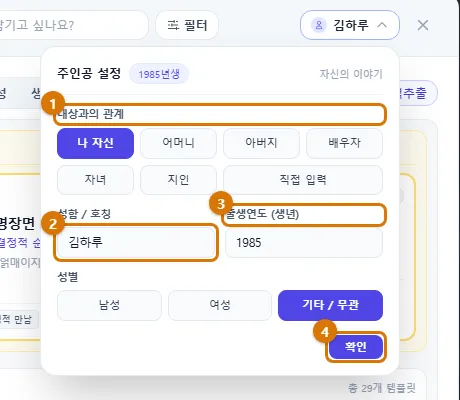
TipThe year of birth matters. Question flags like "age seven" or "age twenty" are turned into years and placed on the timeline. Flags for ages you have not reached yet (for example, around retirement) go in future years — if you do not need them, uncheck them when you edit the contents.
3. Pick a template
There are 29 templates. Click a card and your choice appears in the "Selected:" line at the bottom.
| Category | Templates |
|---|---|
| First time (top 3 picks) | Finding Small Everyday Joys · Top 10 Scenes of My Life · Memory of One Scene |
| Life & Reflection | Classic Chronicle · Top 10 Scenes of My Life · My Half-Life Memoir |
| Family, Bonds & Pets | A Tribute to My Parents · My Child's Growing-Up Diary · People I Met · Life with My Pet · Meeting Log |
| Growth & Learning | Skills & Growth Story · Make a Timeline Chart · A 30-Year Career Chronicle · My Experience Portfolio · My Future Roadmap · Lecture & Learning Notes |
| Daily Life & Notes | Blank Page Mode · Finding Small Everyday Joys · A Journey of Culture, Art & Appreciation · Reading Log · Movie & Drama Notes · Exhibition & Museum Visits · Concert & Performance Notes · Live Sports Log |
| Literary & Emotional | Objects of My Life · Memory of One Scene · Letters Never Sent · Nights Written in My Voice · The Places That Remember Me · Me, Through the Eyes of Objects · A Short Story Like My Life |
- To look back on your whole life, try Classic Chronicle. For your parents' story, A Tribute to My Parents. For career and studies, My Experience Portfolio.
- Log-style templates such as Reading Log and Movie & Drama Notes have "3 questions asked every time you record" instead of flags. When you make the book, the window for your first entry opens right away.
- Blank Page Mode starts with an empty timeline and no flags.
- Click the pin at the top right of a card to collect templates you use often under My Templates → Favorites.
4. Review and edit the contents
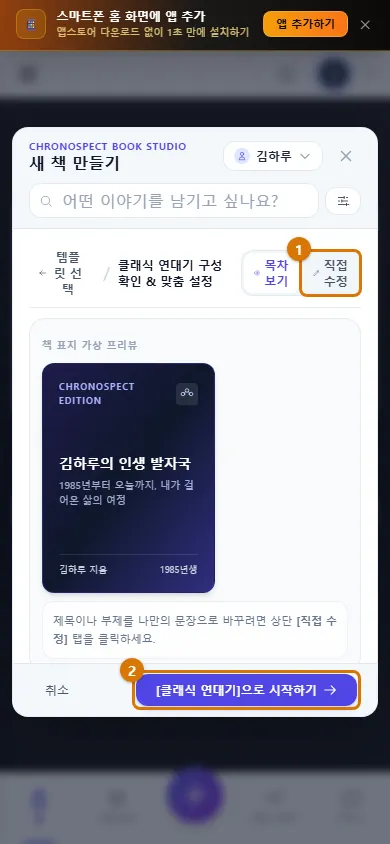
- Click Review contents / customize in the "Selected:" line at the bottom.
- In the contents view, check the cover preview and the question flags (year and question) that will go on the timeline.
- Click Edit to change the book title and subtitle, and uncheck any flags you do not need.
- Click ← Choose a template at the top left to go back to the template list.
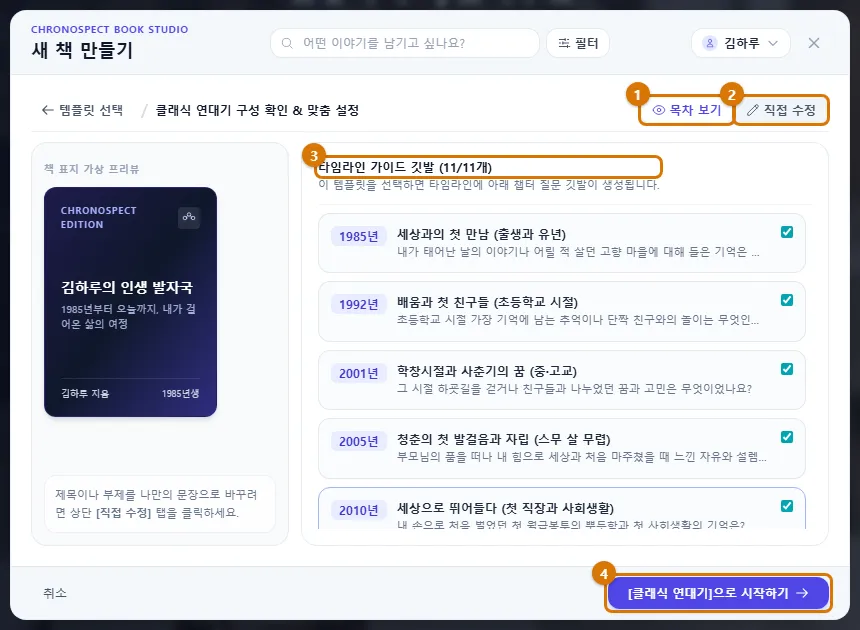
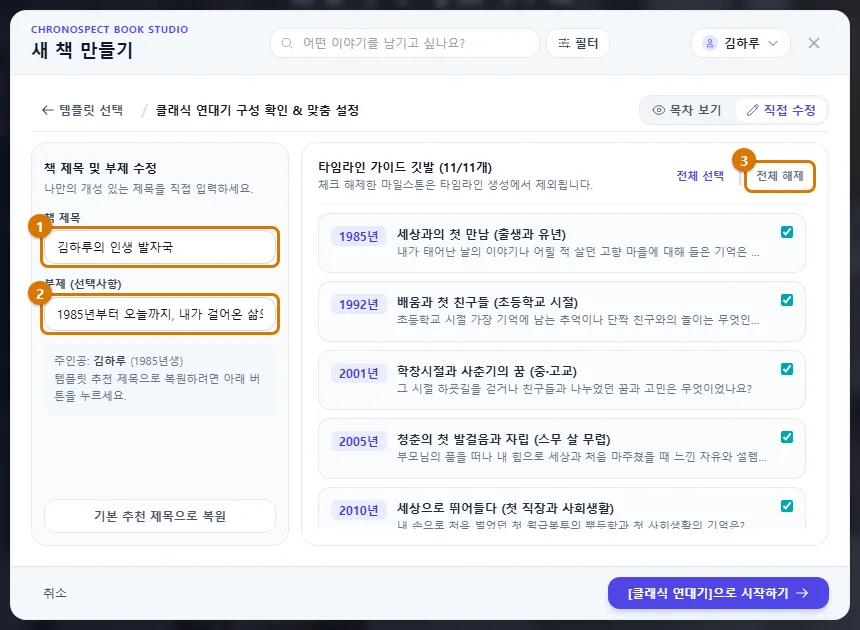
TipIf you leave the title empty, the template's suggested title is used (for example, "Kim Haru's Footprints Through Life"). You can change the title and contents even after the book is made.
5. Start
- Click Start with [template name] at the bottom right.
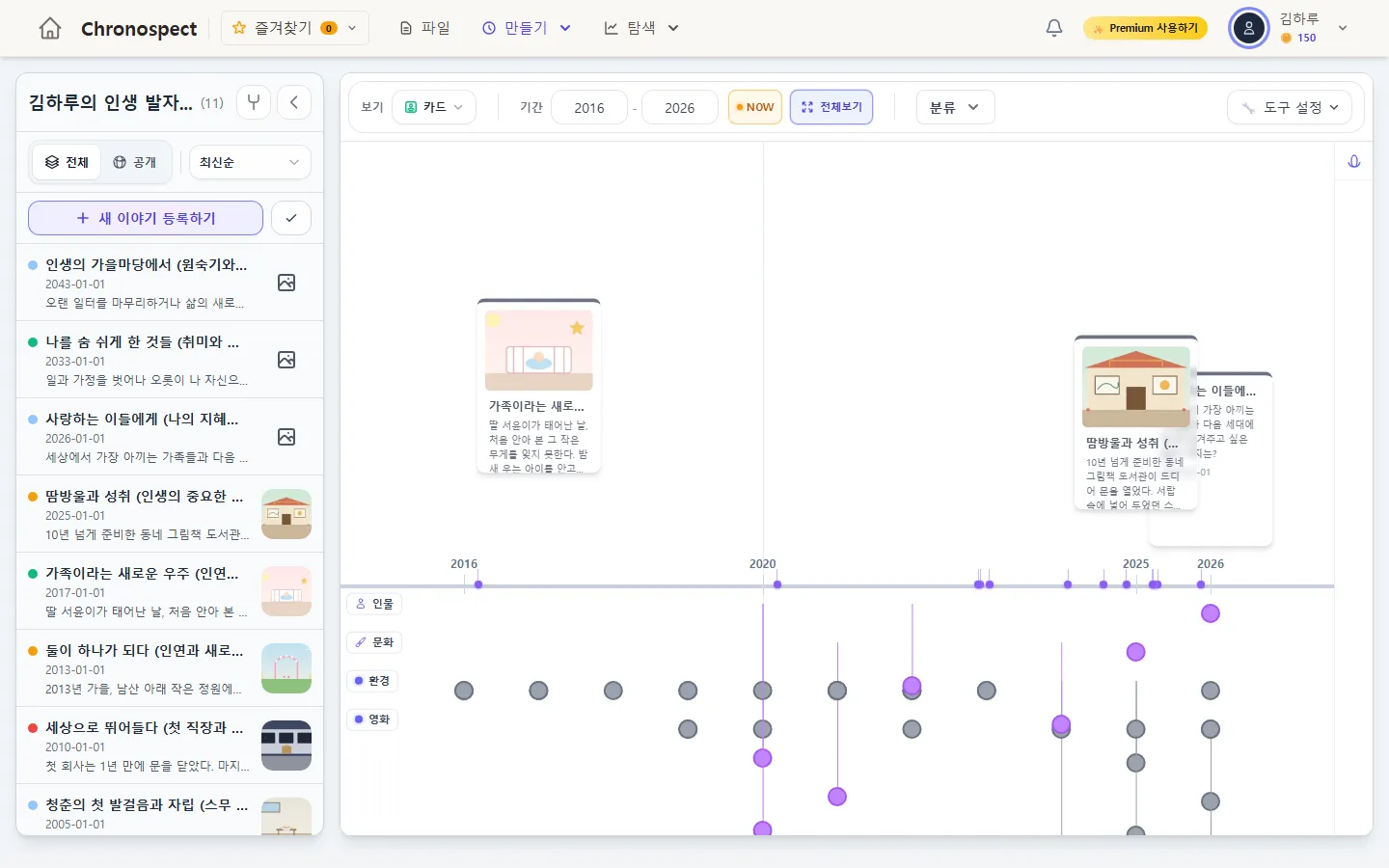
- The book is made and its timeline opens. The question flags are placed as story slots by year.
- Click a flag to see its question and fill it in with your own story — Write in the story window
NoteNew books are private. To show yours to others, change the sharing settings.
6. On your phone
It is the same window on a phone. The search box and filter move to a second line, and template cards show one per row. On the contents screen, scroll down below the cover to see the list of flags.
Check
- The title of the book you just made appears on the Continue card on the home screen.
- Question flags (story slots) are placed by year on the timeline.
If you get stuck
- The flag years look wrong
- Check the year of birth in the main character settings. If you left your date of birth empty when signing up, add it in your profile.
- My search shows no templates
- Click "Reset search and filters", or start with one of the popular templates below.
Next chapter → Write in the story window
This chapter matches the screens as of 2026-10-09. Button names update automatically with the app.